


| Name | Modified | Size | Downloads / Week |
|---|---|---|---|
| Parent folder | |||
| readme.md | 2026-09-04 | 4.9 kB | |
| Screen2ipcam_Setup_2.0.3_x64.exe | 2026-09-04 | 4.0 MB | |
| Screen2ipcam_Setup_2.0.3_x86.exe | 2026-09-04 | 3.9 MB | |
| Totals: 3 Items | 7.9 MB | 109 | |
Screen2ipcam 2.0.3 — Turn Any Windows PC Into an ONVIF / RTSP IP Camera
This is the current release. It includes everything from all previous versions.
Screen2ipcam transforms any Windows PC screen into a standard ONVIF Profile S / RTSP IP camera, so your NVR, DVR or VMS records it exactly like the cameras already on the wall.
No HDMI encoder. No capture card. No extra hardware.
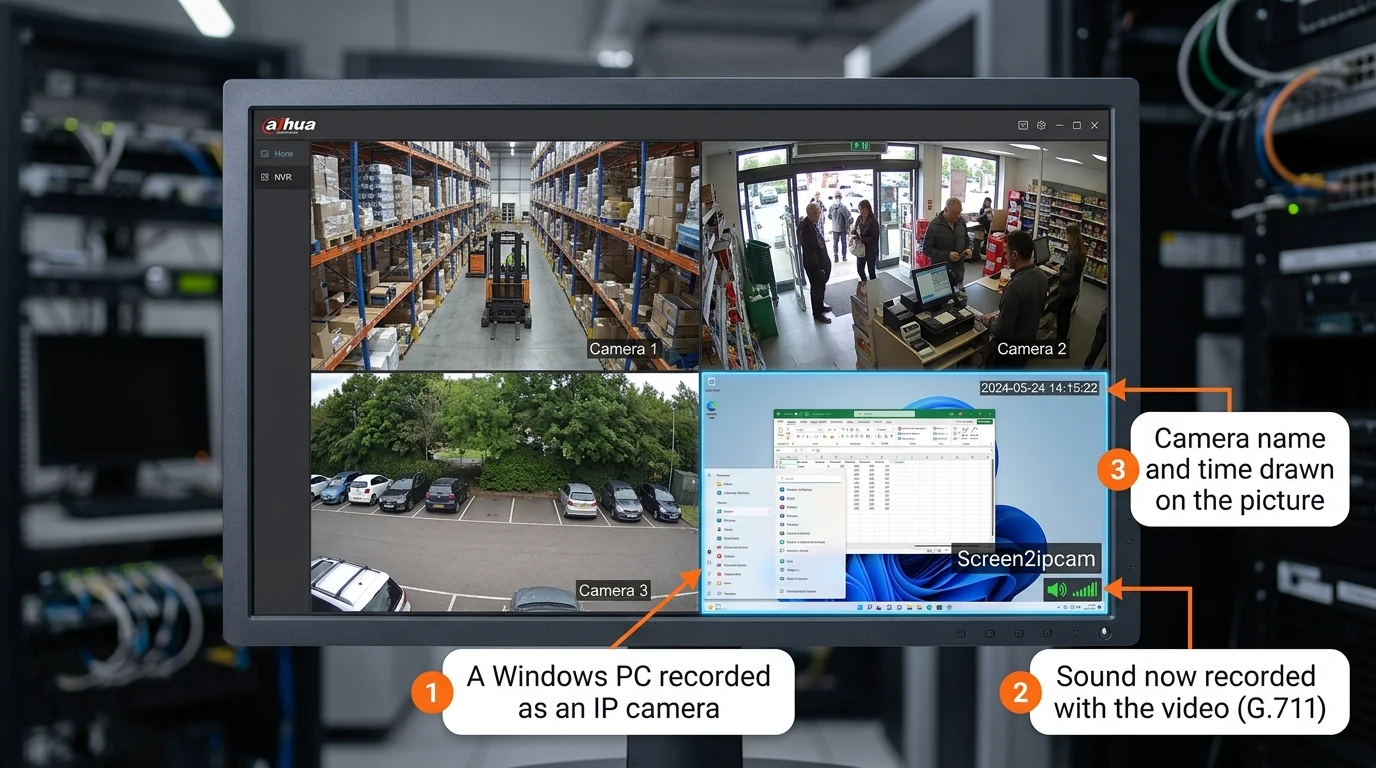
Three of these tiles are ordinary cameras. The fourth is a Windows PC.
Which file do I download?
| File | For |
|---|---|
Screen2ipcam_Setup_2.0.3_x64.exe |
64-bit Windows — most PCs |
Screen2ipcam_Setup_2.0.3_x86.exe |
32-bit Windows — older PCs, POS terminals, industrial consoles |
Not sure? The download button gives you x86, which runs on every Windows PC, 32-bit and 64-bit alike. On a modern 64-bit machine you can pick x64 instead.
What's new in 2.0.3
- More stable connection with recorders. The app now answers the connection checks some recorders send while streaming. Uniview models in particular used to drop and reconnect every few seconds even though the video was fine. Fixed and verified on real Uniview hardware.
- Wider support for common sub-stream names —
stream2,sub,substream,subtype=1and others. Ask for the sub-stream and you get the sub-stream. - A "Check firewall" button in the Status tab. It tells you whether the rule is in place instead of leaving you to guess. It only reads; it never changes your firewall.
- A clear note when your RTSP port is not the default, reminding you to type it in the recorder — most recorders assume 554 without saying so.
Also included, from 2.0.2
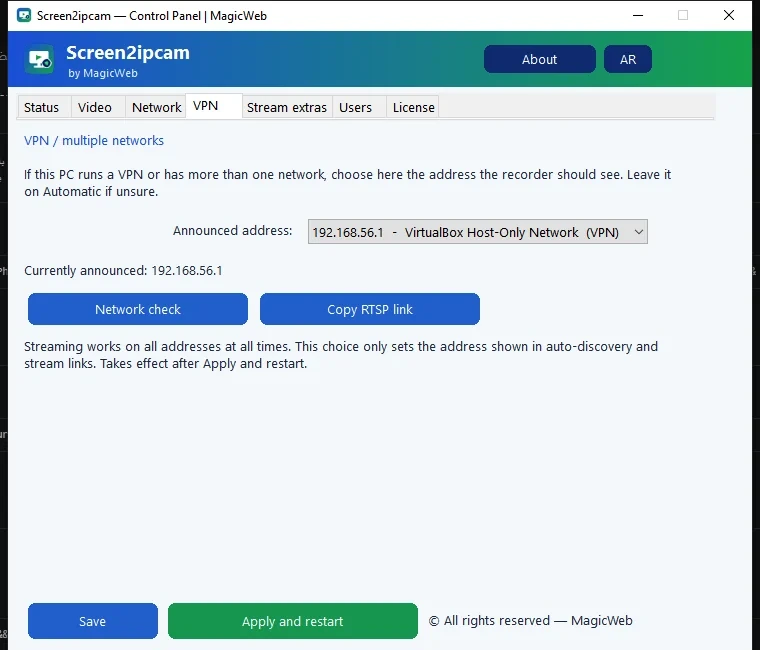
- Smarter network address selection — VPN and virtual adapters are recognised and skipped automatically.
- A VPN tab inside the app: choose the announced address yourself, run a network check, and copy the RTSP link in one click.
- Much better behaviour on PCs with a VPN, or with more than one network or address.
- Camera identity tied to the PC hardware, so it stays the same after reinstalling Windows.
Also included, from 2.0.1
- Audio — stream the PC's sound together with the video.
- Camera name and date/time drawn on the picture, with a choice of corner, colour, size and transparency.
- An on-screen privacy alert while someone is watching the PC (optional, switched on from inside the app).
Upgrading from an older version
Install over your current version — your licence and settings are kept.
One-time step: after upgrading, delete the camera in your recorder and add it again. It appears as a new device, once only.
Quick setup
- Install and run Screen2ipcam on the PC whose screen you want recorded.
- Open the control panel and set the ONVIF username and password. These are what your recorder will use — they are not your Windows login.
- Note the IP address and ports shown in the Status tab.
- In your NVR or VMS, add a device, choose ONVIF, and enter the IP, the ONVIF port and those credentials.
Ports
| Purpose | Protocol | Default |
|---|---|---|
| ONVIF discovery | WS-Discovery / UDP | 3702 |
| ONVIF device service | HTTP / TCP | 8000 |
| Video stream | RTSP / TCP | 554 |
| Web admin panel | HTTP / TCP | 8080 |
The one that catches people out is the ONVIF device service port: 8000, not 80. Many recorders pre-fill 80 and then connect to nothing.
Give the PC a fixed IP address (static, or a DHCP reservation on your router). A camera that changes address after a reboot is a camera your recorder loses.
Features
- ONVIF Profile S + H.264 RTSP streaming (Main & Sub streams)
- ONVIF auto-discovery
- Windows 7–11 (32 & 64-bit)
- Native C++, very low CPU usage
- Works entirely on the local network — no internet required
Compatible With
Blue Iris · Dahua · Hikvision · Uniview · Milestone XProtect · Network Optix Nx Witness · Agent DVR · Synology Surveillance Station · Frigate / Home Assistant · any ONVIF / RTSP NVR or VMS
✅ Also on the Microsoft Store — signed by Microsoft
Installs with no security warnings: https://apps.microsoft.com/detail/9pjdgr30l9l1?cid=sourceforge
Website & Support
- Website & Guide: https://magicweb.win
- Support: support@magicweb.win
Thank you for using Screen2ipcam!

