
 Download
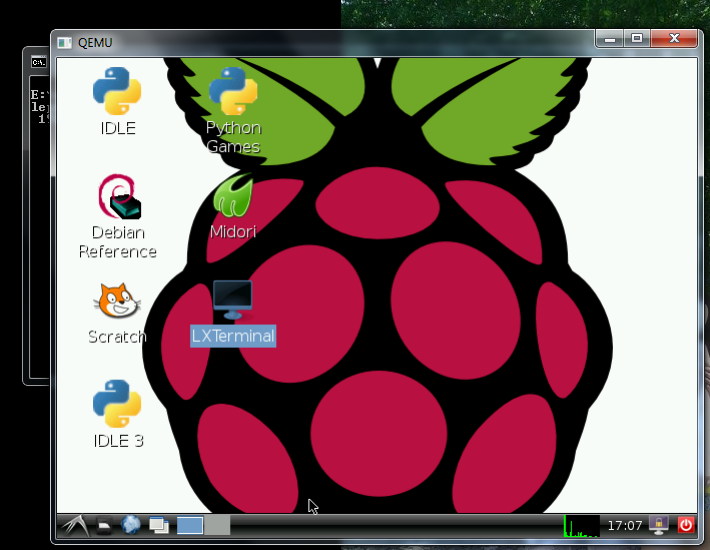
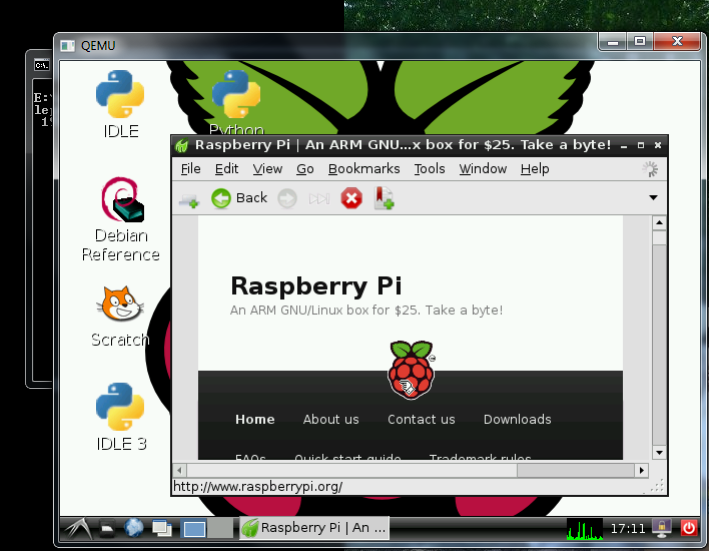
Contains everything needed to quickly and simply emulate the Raspberry Pi in a Windows environment.
Download and run suitable for beginners.
STEAM USERS: If you use steam and would like to support the developer, it would really help if you could spend a minute completing a short survey for a new project / potential start up [link to survey below]
https://docs.google.com/forms/d/e/1FAIpQLSfYb_rNKGDiMsVkSerVCLFGTMJOxaaNHq4uIaHDdrIEDIFgmg/viewform
Project Samples
Categories
Raspberry PiFollow Raspberry Pi emulation for Windows
Other Useful Business Software
Ship Agents Faster
Gemini Enterprise Agent Platform lets you rapidly build, scale, govern and optimize production-ready agents grounded in your organization's data. The platform enables developers to build custom or pre-built agents for virtually any use case. New customers get $300 in free credits.
Rate This Project
Login To Rate This Project
User Reviews
-
It still works even on Windows 11. also I tried another image " archlinuxarm-13-06-2012.img " (minimal, command line only) and it works fine! A good project for beginners and enthusiasts as well!
-
It works, but that's the one and only positive point here. No update since 10 years, Qemu and the OS image are extremely outdated. There are binaries which are unnecessary for this purpose.
-
einfach alles Okay
-
Great solution for develop fast for Raspberry
-
Extension the size as given in one of the previous reviews didn't work for me. However the instruction give at www.raspberrypi.org/forums/viewtopic.php?f=2&t=4382 worked for me. You can open an second image in QEMU where you can resize /dev/sda1 using program gparted. So 1) copy the image to raspbian.img 2) resize by qemu-img resize raspbian.img +2G 3) Run both images as: qemu-system-arm.exe -M versatilepb -cpu arm1176 -hda 2012-07-15-wheezy-raspbian.img -kernel kernel-qemu -m 256 -append "root=/dev/sda2" -net none -drive file=raspbian.img 4) sudo apt-get install gparted 5) Startx and run sudo gparted in the command window en select the second partion and resize it. 5) You new larger image is then raspbian.img.

