
| Name | Modified | Size | Downloads / Week |
|---|---|---|---|
| Parent folder | |||
| main.rs | 2024-03-08 | 11.5 kB | |
| keycodes.rs | 2024-03-08 | 850 Bytes | |
| switch.rs | 2024-03-08 | 16.0 kB | |
| exts.rs | 2024-03-08 | 6.0 kB | |
| page_struct_.rs | 2024-03-08 | 22.7 kB | |
| term_app.rs | 2024-03-08 | 1.2 kB | |
| update.rs | 2024-03-08 | 5.3 kB | |
| globs.rs | 2024-03-08 | 18.7 kB | |
| mcrs.rs | 2024-03-08 | 1.1 kB | |
| pg.rs | 2024-03-08 | 13.8 kB | |
| func_id.rs | 2024-03-08 | 1.6 kB | |
| outcast.rs | 2024-03-08 | 13.6 kB | |
| core.rs | 2024-03-08 | 24.7 kB | |
| Totals: 13 Items | 137.0 kB | 0 | |
Project TAM.
GOAL:
The very reason of this project is to make Your life easy at least for a little bit thanks to efficient automation of daily routine.
FUNCTIONS:
For now, TAM makes possible to find files in whatever directory and run them with chosen viewers. hmmm.. yea, looks rather boring ain't it??? :)) well, let's look on some examples & details will show You how this "boring" feature can make Your life better.
Examples:
So, actually we have hella number of files & we (in many cases) need to use regex to make searching through that endless damn heap efficient, but the most of us have no time to learn such stuff + regex software have some differences. 2nd moment, we need not just run files, but run them with different options. So, let's deal w/ example..
python3 ./tam.py -path0 "/tst" -find_files -tmp_file "/tmp/tst02" -in_name ".mp4" -view_w "vlc --sout-x264-b-bias=-15" -view_w "smplayer" -cols 2 -rows 15 -col_w 100 -in_name "some"
-path0 sets folder to search stuff.
-find_files activates function to search.
-tmp_file sets tmp files (actually, the're two tmp files: in our case, /tmp/norm_tst02 & /tmp/err_tst02).
-in_name sets keyword.
-view_w sets viewer w/ options.
-cols sets number of columns.
-rows sets number of rows.
-col_w sets width of column.
+++++++++++++
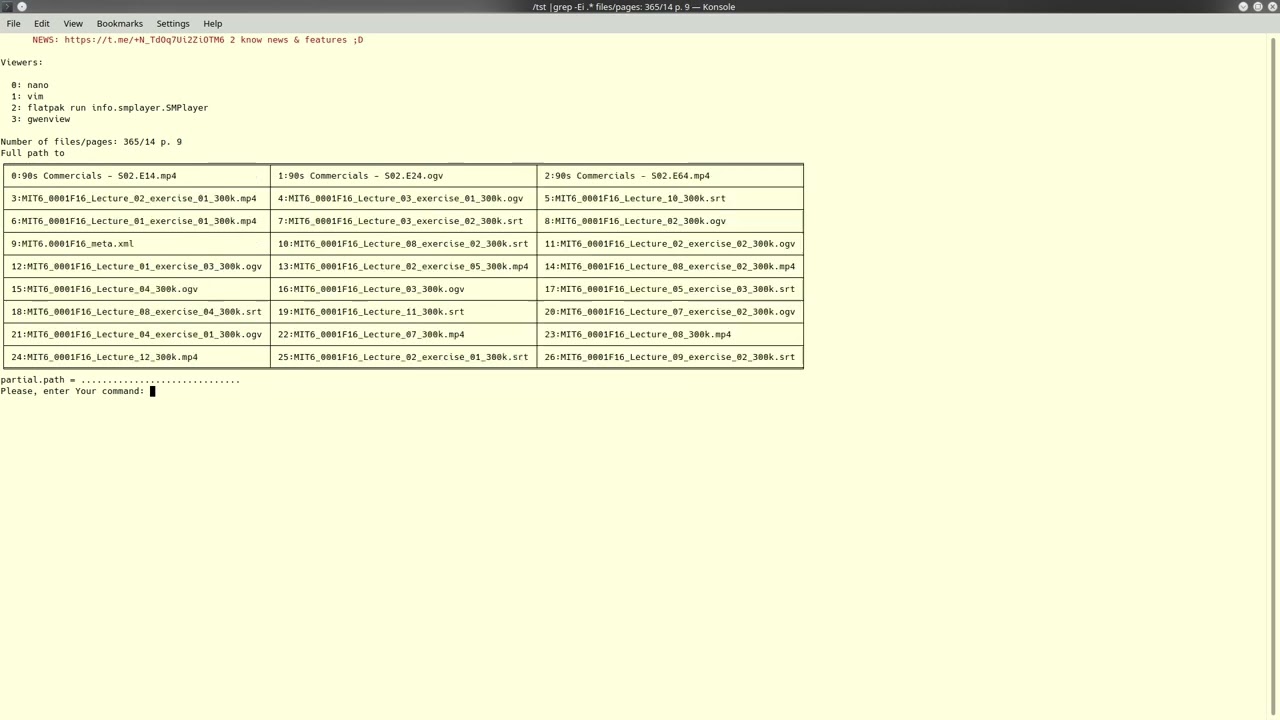
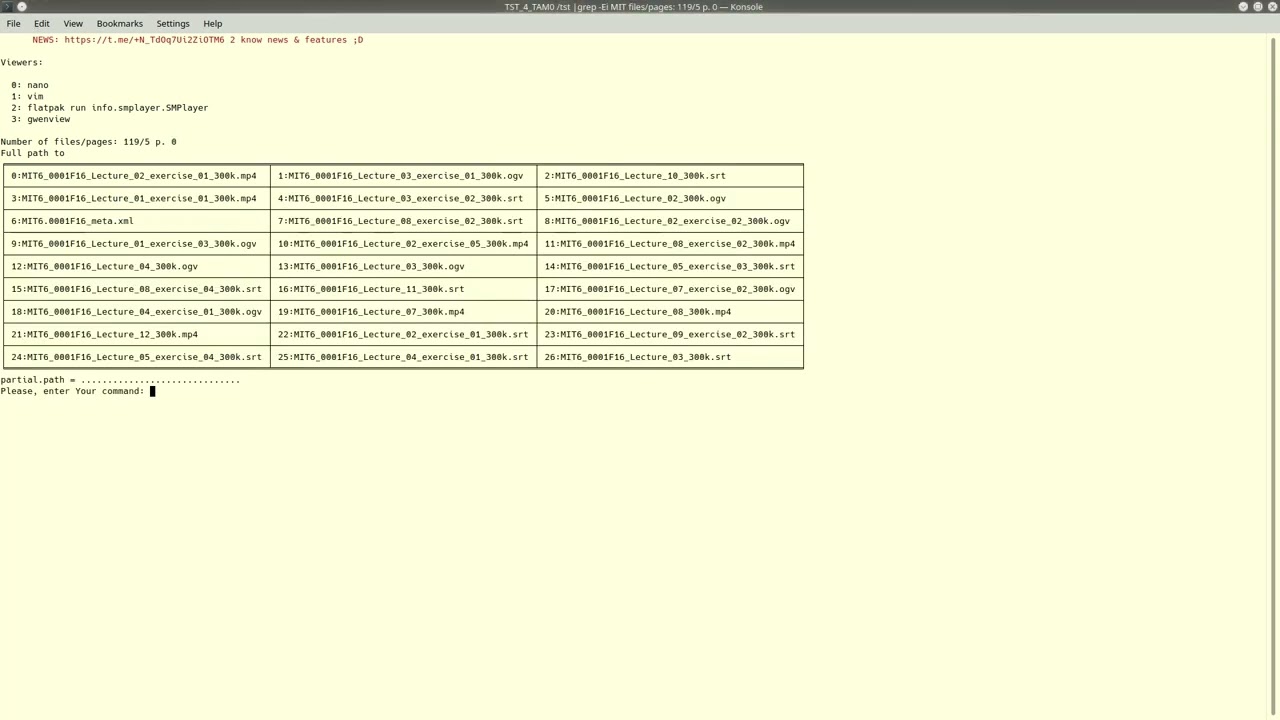
This command forms table of found files, each file gets a number + we see list of viewers (each viewer has own key number too)..
To run file, we write "\<key number of viewer> \<key number of file>", then press Enter. for instance, "0 2" runs file (key number "2") w/ viewer (key number "0").
Command "np" shows next page/table.
"pp" - previous page.
"go2 \<number of page/table>"
"0p" - 1st page.
"lp" - last one.
"fp <key number of file>" shows full path to chosen file.
ctrl + c to exit.
# Short guide how to use TAM.
 # How to switch TAM's Konsoles.
 # Supported Platforms:
So far, TAM has been tested only for Linux. However, theoretically this variant must work on FreeBSD, NetBSD & MacOS quite smoothly (but i don't guarantee it).
