
Menu
▾
▴


QxlWin with no files loaded

QxlWin showing Header tab for a loaded QXL_win file

QxlWin showing Map tab for a loaded QXL_win file

QxlWin showing Files tab for a loaded QXL_win file

QxlWin showing View Files tab for a loaded QXL_win file
Home
QxlWin
QxlWin is a cross platform application that allows the internal structure of a QXL (a Sinclair QL emulator) pseudo hard drive file to be explored and manipulated almost at will.
Download
Windows Users
Windows users need the exe file, and a pile of DLLs to enable QT5 applications to be run.
- Go to the https://sourceforge.net/projects/qxlwin/ page.
- Click on the Files tab.
- Click on Windows 32-64bit.
- Click on QxlWin-Installer.zip to download it.
- Create a folder, c:\qxlwin for example.
- Unzip the QxlWin-Installer.zip into that location.
-
Double-click on the QxlWin-Installer.exe file to execute it.
-
On the Welcome screen, click Next.
- On the Installation Folder screen, accept the default, or browse to a suitable folder.
- Click Next.
- On the Select Components screen, make sure both components are ticked.
- Click Next.
- On the Licence Screen, choose "I accept..." (nobody reads these things anyway, right!)
- Click Next
- On the Start Menu Shortcuts screen, click Next.
- Click Install.
- If yo wish to run QxlWin now, leave it ticked and click Finish, oterwise, untick it and clikc Finish.
Linux Users
Install QT5 support using your package manager. Chances are, it's already installed.
Go to the Linux 32bit or Linux64bit files area, and download the binary. You will not need the (windows) Qt5SupportFiles which is described above.
Mac Users
Sorry, you'll have to download the source code and build it yourself with QT5.7 (or higher) on your Mac. I don;t have one, and I have no interest in buying one for a couple of minor, Open Source, QT Programs. Sorry.
Execution
Double-click the icon, or file.
When it appears, click File->Open and select your desired qxl_win file.
When it opens the following tabs are available:
Header
The header tab displayed, read only, information about the file header for the qxl_win hard disc file. You cannot change anything here. Numbers are displayed in decimal by default, but use the two buttons at t he bottom to switch between decimal and hexadecimal as you desire.
Map
The map shows a linked list of all the files in the qxl_win file's mapping sectors. This is unlikely to be of use, but you are able to view, in very rough textual format, how each sector is linked to others in the same file or directory.
Again, you cannot make changes here. However, you can copy data and paste it into other applications.
Files
The Files tab shows the tree structure of the directories inside the qxl_win file. When you click a directory, the files within are displayed on the right. Double click on a file and it will be opened in the File Browser tab, provided that the file is not a binary, executable or object file.
Once again, you cannot make changes here.
File Viewer.
This tab simply displays the contents of any text files. Yo can copy and paste some or all of the displayed text and use it in other applications.
Be aware that the charcterset used by the QL and emulators doesn't always match up to that of the host system (ie, the one you are running qQxlWin on) so there might be a few characters that seem strange when pasted into a text file open in Notepad or Geany for example.
You cannot make any changes to the data on thie tab either.

QxlWin with no files loaded
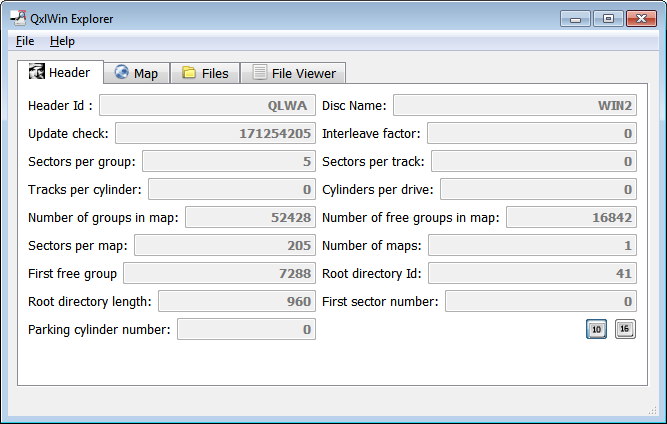
QxlWin showing Header tab for a loaded QXL_win file
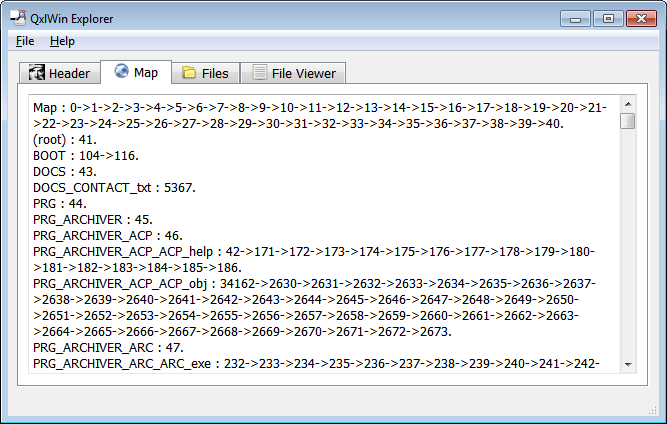
QxlWin showing Map tab for a loaded QXL_win file
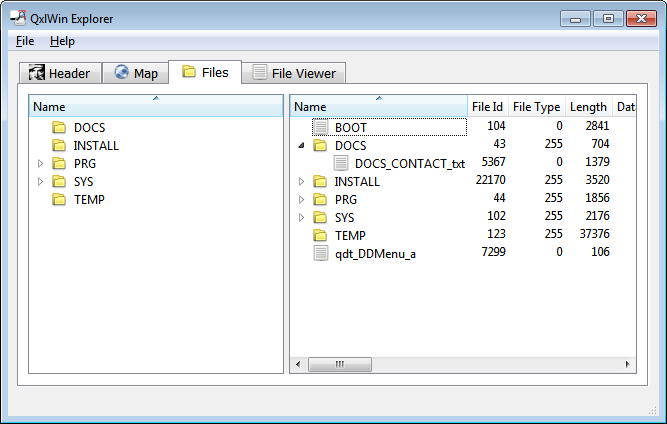
QxlWin showing Files tab for a loaded QXL_win file

QxlWin showing View Files tab for a loaded QXL_win file
Project Admins:

