playsmf Wiki
midi smf player / looper / arpeggiator / accompaniement software
Brought to you by:
mrbmueller


If you have additional questions, remarks, comments, ideas, requests - contact bm3_2000@yahoo.com
playsmf is a small, but powerful Windows (32/64bit) commandline standard midi file (SMF) player. Its specifically designed for low CPU and memory consumption to leave enough system recources for other applications such as soft-synths, DAWs, mixer apps, etc. while playing live and running in background.
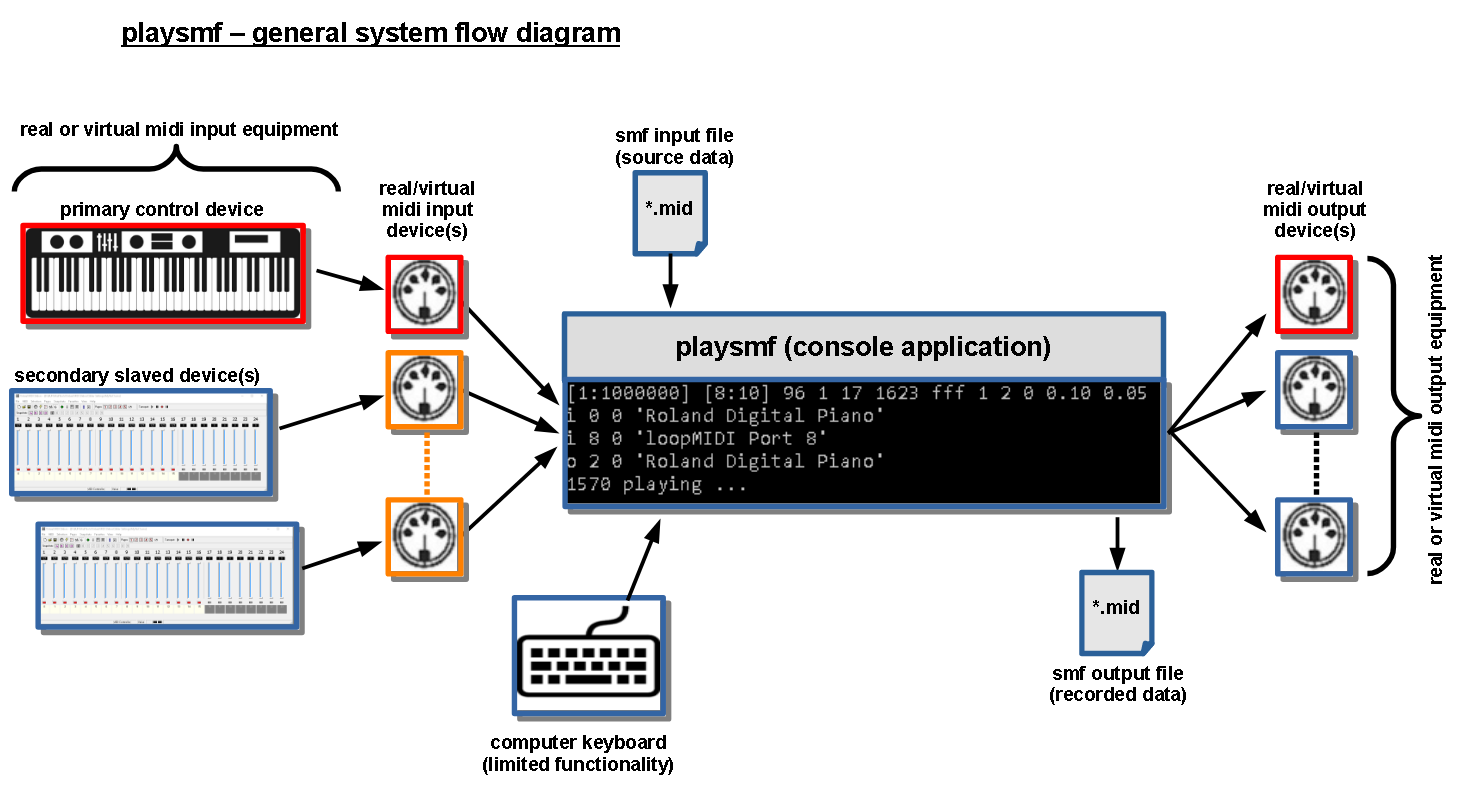
In addition it comes with intrinsic flow control features based on labels, jumps and interrupts defined by smf marker events. This allows to program loops, breaks, fills, intros, outros, etc. In combination with realtime interrupt (song sequence transition) control, based on incoming midi data with or without chord recognition, the player can turn into an fully equipped arranger/arpeggiator accompaniement software. However unlike typical arpeggiators or style players, the player doesnt do any (more or less intelligent) event data modification such as transpose, volume adjustments, etc. to the smf midi data and plays strongly the raw data exactly as provided by the smf. This gives full transparency to all transmitted midi data and you know exacly what gets played with each individual chord, however the smf needs to provide individual pattern for all required key/scale/inversion combinations which are played during a live session. Therefore its possible to play individual pre-compiled pattern - for instance with randomized timings/volume/controller/sysex events - for each individual chord.
On purpose, the player lags for a graphical user interface since everything should be controlled in realtime by external MIDI equipment without taking your hands off the keyboard while playing. This includes direct access to style variations, grouped track mutes/unmutes, start/stop/continue/reset control, etc.
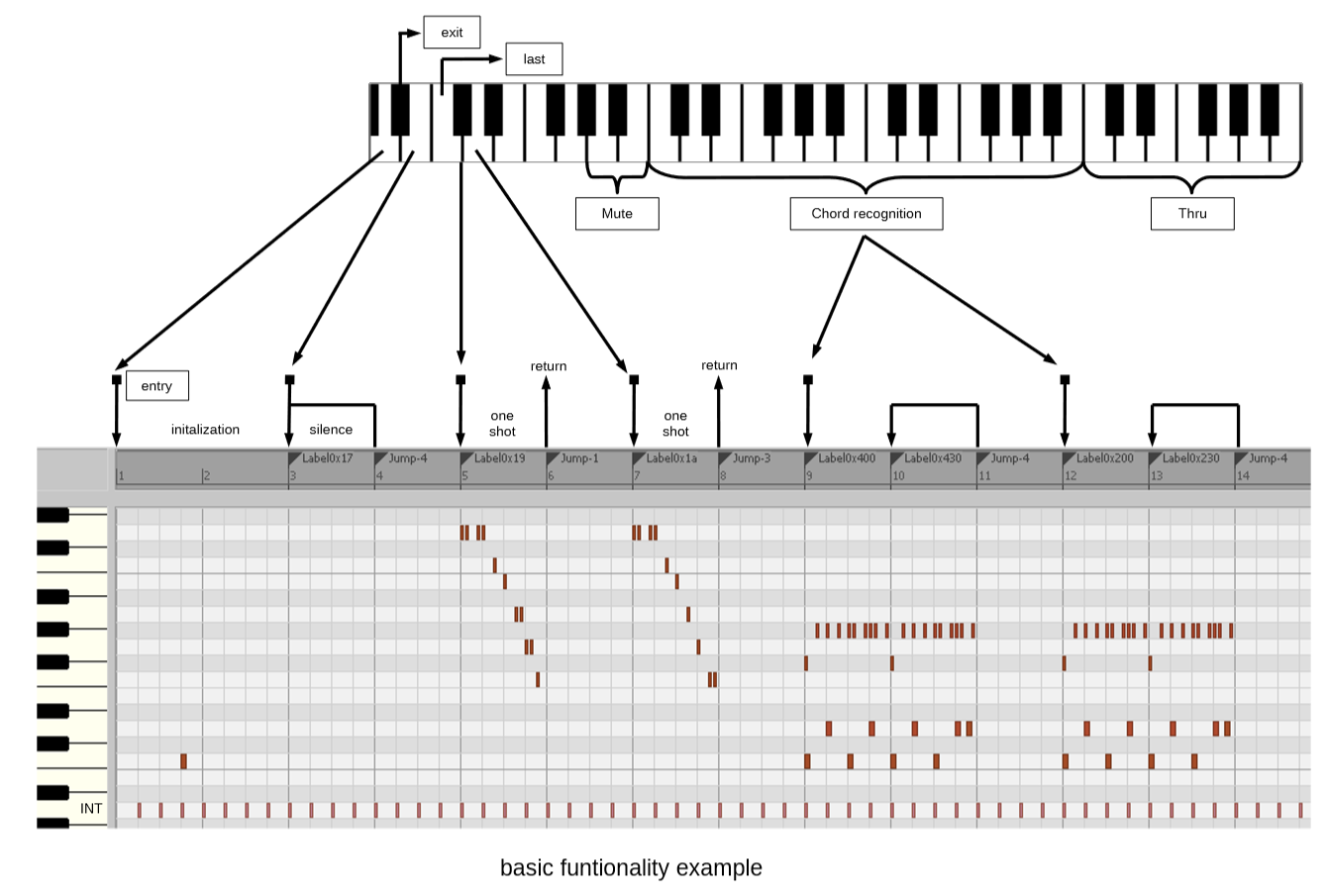
To get started quickly, few example midi files are attached. Some of them are converted from Yamaha style files to demonstrate the players capabilities. Therefore best results will be achieved with an XG compatible sound device. In order to get full realtime performance, it is strongly recommended to use either real midi equipment or softsynths with low latency settings (response lag time <= 10ms). For realtime accompaniement demonstration of course a real midi controller aka. keyboard is strongly recommended as a primary input device.
In case you dont know your midi device IDs or names for the correct player setup, run MidiPorts.bat to list all input and output devices respective their IDs. Chose the right ones as primary input and output devices and adjust command line parameters #3 and #4 accordingly.
The style examples are typically setup with chord recognition left hand across 2 octaves thru keys 36..59 and melody right hand thru keys above 60 (middle C). If required, adjust the transmission midi channel on your primary input device in order to attach to the right smf tracks while playing.
example video link
example video link
example video link
example video link
example video link
example video link
example video link
example video link
example video link
example video link
example video link
example video link
example video link
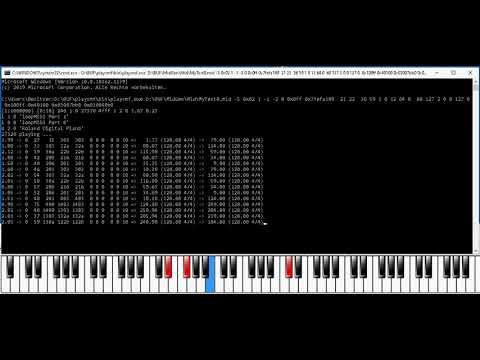
Generally there is not much to display since the user should more focus on playing and listen rather than watching the screen. However in some situations it comes handy to track and follow requested sequence transitions. Therefore the console output displays one line for each transition request with additional information such as labels and song/sequence positions for playing and target sequences.
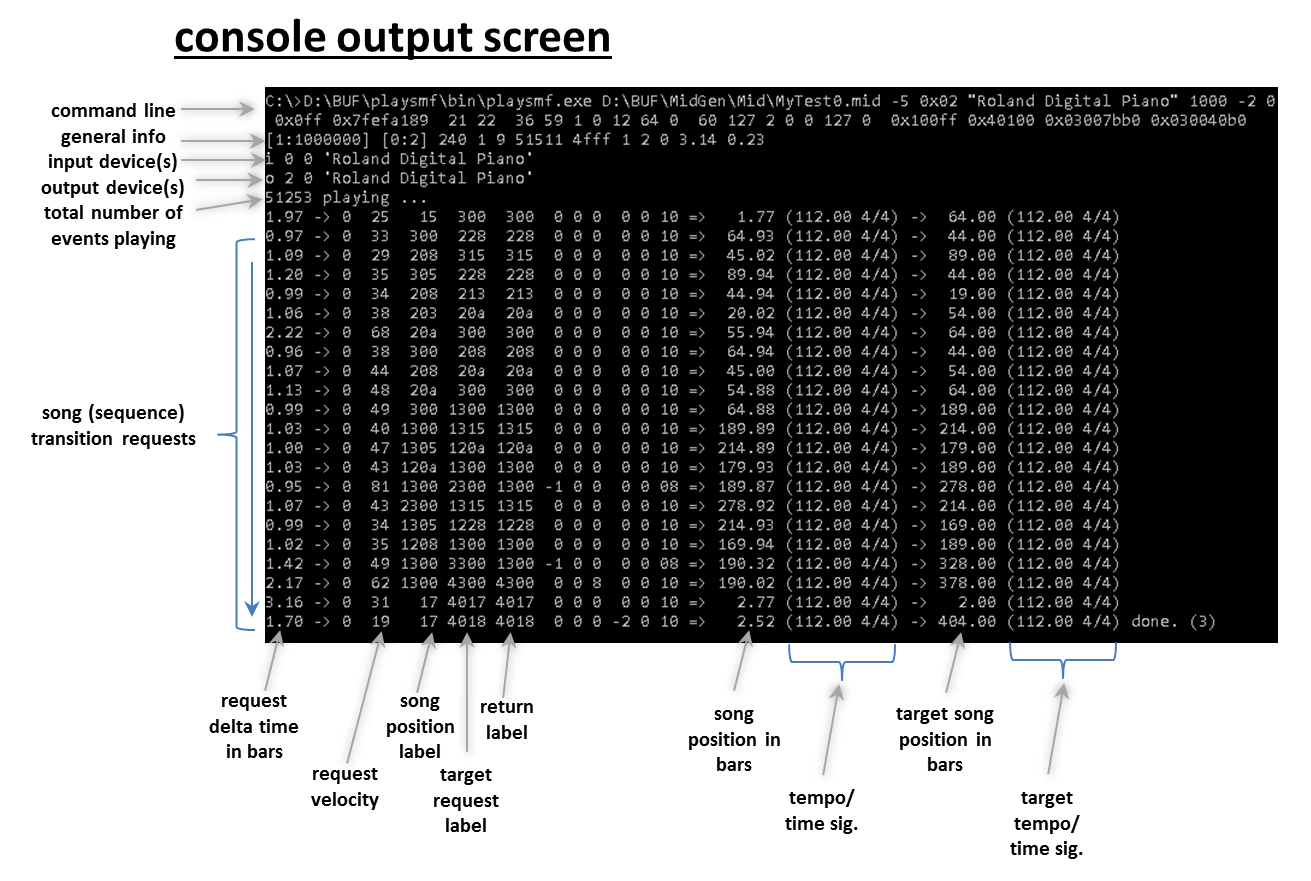
The player generally allows to play across multiple output devices simultaneously. Typically devices are chosen by SMF Meta-Event 0x20 (port ID select) at the very beginning of each individual track, but in addition the player also allows switching port IDs while playing at any song position. If port-select events are missing, the player uses the default midi output device provided by command line parameter #3.
In addition SMF Meta-Text-Event 0x9 is supported as well for name based port selection, however it is recommented to use device IDs rather than port names for better across system portability.
The player generally supports full live session recording and captures all data across all sources such as smf-, primary- and secondary inputs at once. This provides a merged smf output for either further offline processing or manual editing and inspection in any sequencer software. The output smf structure is organized in track groups and tracks for each individual data source and their functional data splits. This includes the following output tracks:
In addition, PortID and PortName information is stored for each track in case multi port setups are used. So if you replay your recording using playsmf, the right midi output ports should be selected automatically.
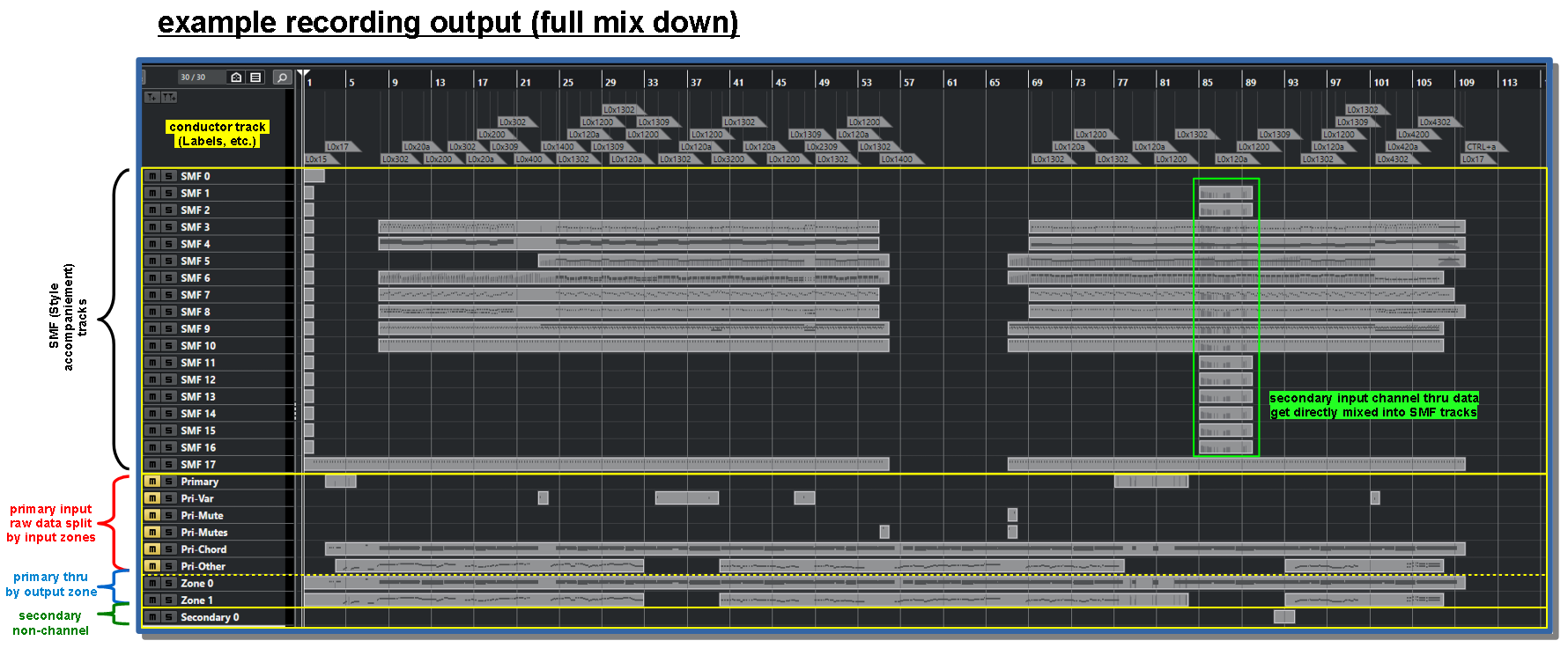
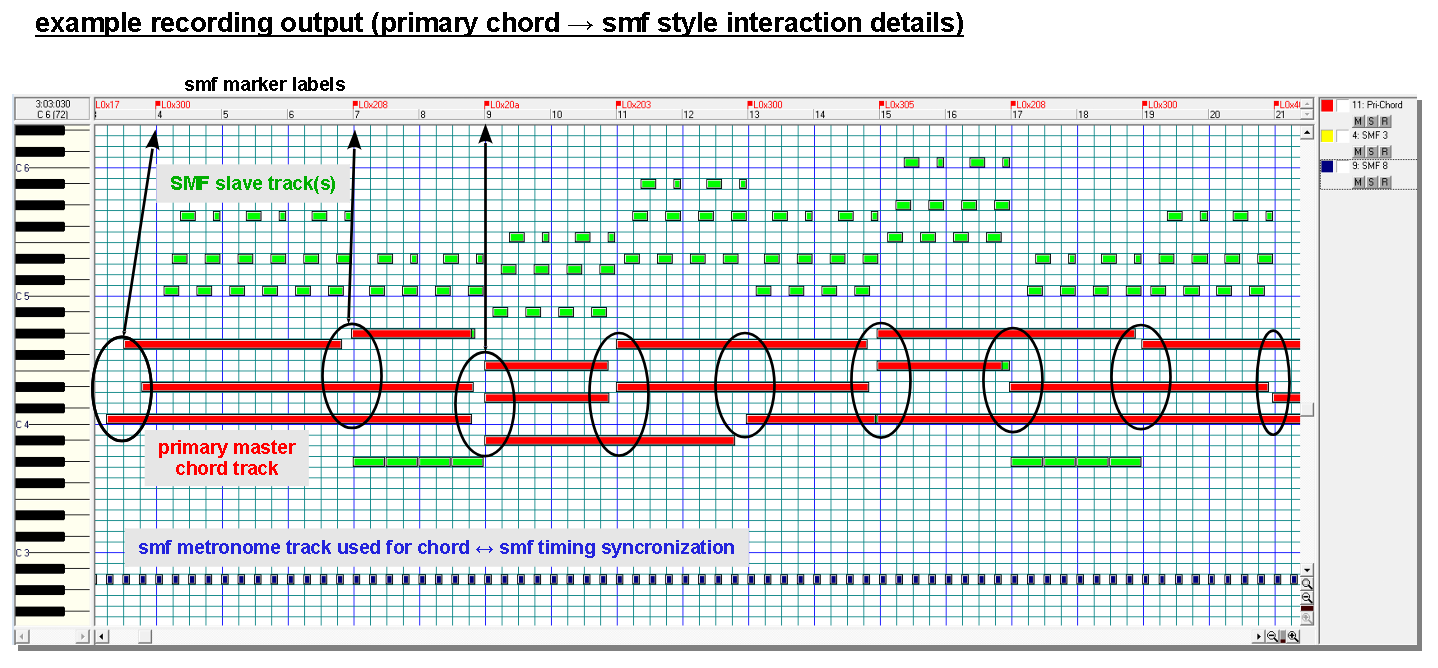
Recorded data will be stored into a smf named MyMidRecordTimeStamp.mid within the current working directory. This way you can record as many takes as required without deleting older ones for further processing.
Recording is controlled by command line parameter #8 (0x0ff = off, else enabled). In addition, the parameter controls internal smf recording using a message mask filter scheme in the following binary/hexadecimal format:
binary format: 0b_0mmmmmmm_MMMMMMMM_e_fffffff_FFFFFFFF
0mmmmmmm: data mask (7 bit)
MMMMMMMM: status mask (8 bit)
0fffffff: data filter (7 bit)
FFFFFFFF: status filter (8 bit)
e: disable/enable event playing (allows to record internal events w/o playing them)
example argument settings (hex values):
Basically all types of midi events including system common (sysex, time code, song select/position, etc.) and system realtime (start, stop, continue, active sensing) events are supported. Since system common (except sysex) and realtime events are not part of the smf specification, they are typically embedded in escape meta events (0xf7). The player generally supports such events and therfore it is possible to include for instance time code, active sensing or start/stop/continue transport control events into the song sequence for playback.
On the recording side, the player records everything including sysex, system common and system realtime events except midi timecode, timing clock and active sensing. Similar as on the player side, the recorder packs system common and realtime events (which are not part of the smf spec.) into escape meta events. This way you can also record something like start/stop/continue transport control data into the smf.
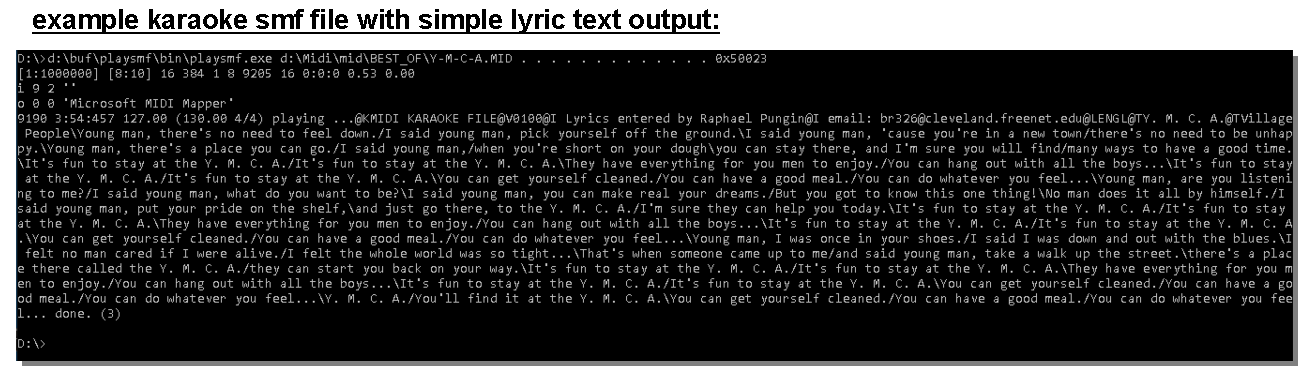
SMF text events are typically ignored unless they are explicitly enabled using argument 0x5xxxx where bits [15:1] represent a mask filter for SMF text meta event types 1 to 15. If bit 0 is disbaled, text messages within the 1st bar measure are ignored, else everthing gets displayed on the console output including track names, device names, etc. Text messages are simply displayed as they are on the console output screen at the time when they appear in the sequence. This can be used either for simple lyric printing or in combination with style type pattern to display messages on certain timestamps or in combination with marker labels for style accompaniement tracking.
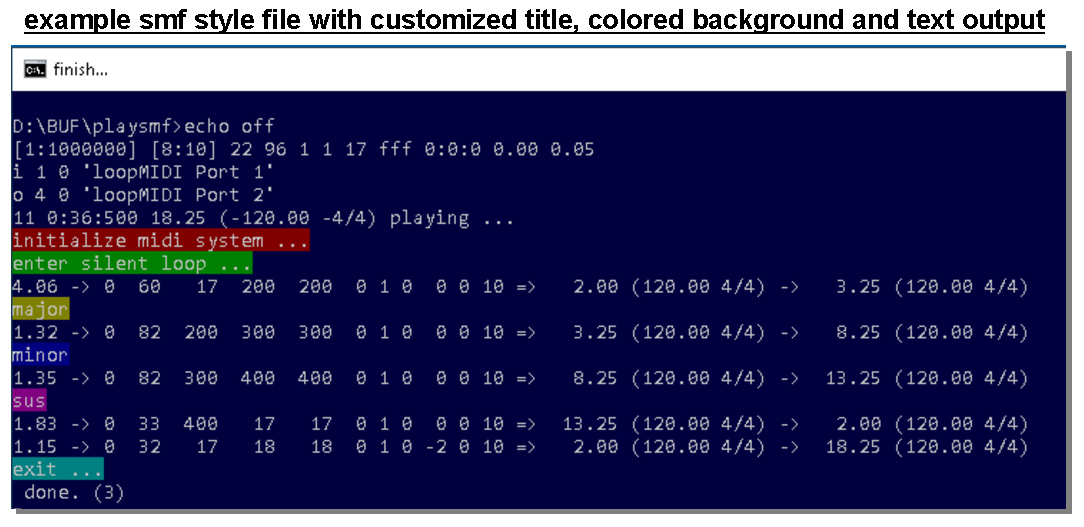
Specifically on Windows10 and 11, the std. console text output supports VT100 terminal ansi escape codes according to the Microsoft VT100 implementation. This allows printing colored text output, changing terminal background colors or user defined console window titles in realtime while playing live.
The player generally supports MIDI-Thru functionality with split and multi-layer modes for live sessions. However instead assigning fixed devices/channels to play on, you can assign layered zones to SMF tracks following their current device/channel combinations while playing. This enables dynamic MIDI-Thru (re)assignments and routing during a live session.
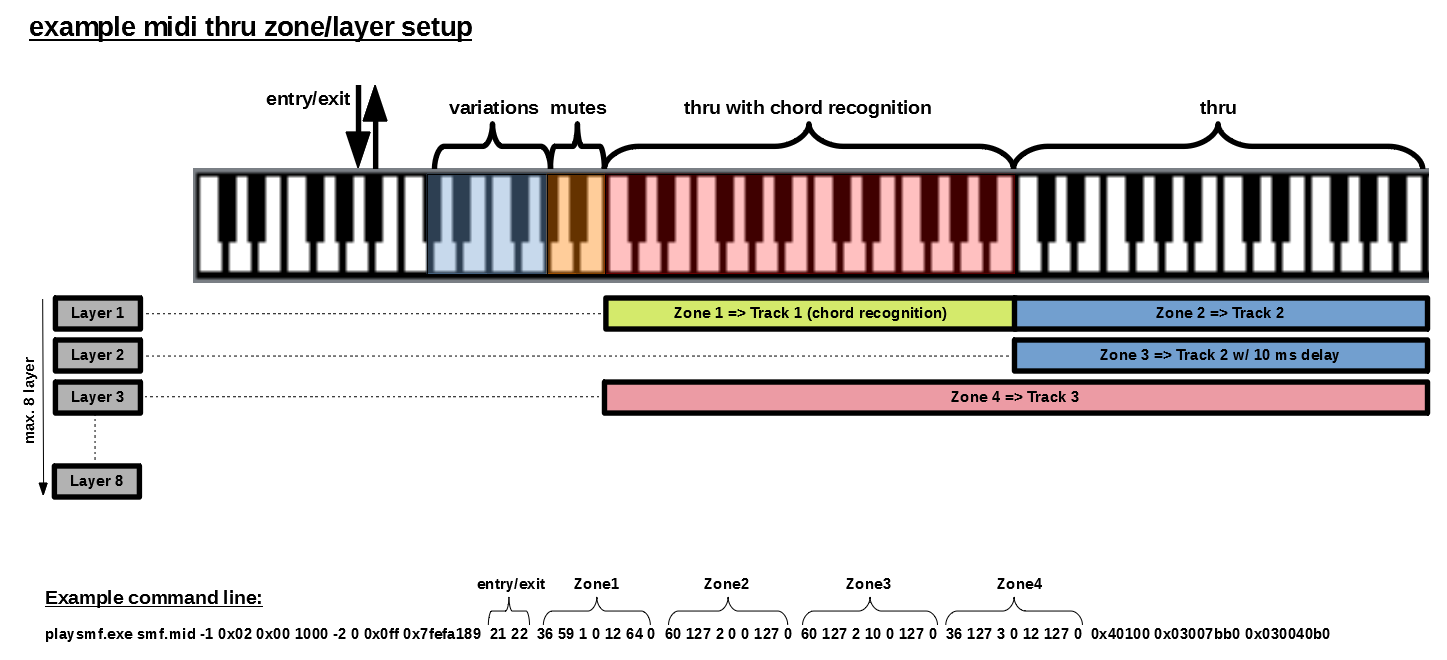
Zones can be defined by arguments above entry/exit key definitions. Each zone is defined by 7 consecutive arguments such as:
<LowKey> <HighKey> <Track> <Delay> <KeyOffset> <Von> <Voff>| parameter | description |
|---|---|
| LowKey | low key |
| HighKey | high key |
| Track | assigned track (count backward if negative, e.g. -1 assigns very last track) |
| Delay | delay in ms (experimental feature - use in rare cases with small delays only) negative numbers will disable the entire zone and arguments are used as placeholders. delays are cummulative, meaning that subsequent zones will get delayed as well. therefore zones need to be arranged and ordered by delay settings starting with lowest delays (typically zero) |
| KeyOffset | key transformation transpose +/-127 or set a fixed key if larger than 127 (e.g. can be used as fixed layered percussion sound) |
| Von | NoteOn velocity transformation offset +/-127 or set a fixed value if larger than 127 |
| Voff | NoteOff velocity transformation offset +/-127 or set a fixed value if larger than 127 |
All incoming messages across all received channels will typically get routed to assigend zones/layers. In case the primary midi controller sends across multiple channels simultaneously (like some controllers do for layered instruments), routing might be triggered unintentionally multiple times for each channel. To filter for a certain incoming channel, global argument #6
<Channel>can be used. By default it is set to -1 passing all channels, however any value 0..15 will pass only a single selected channel.If global argument #6
<Channel>is set to -2 or less, the attached track number is calclated by<Track> + Abs(<Channel>)-2 + <InputChannel>. This allows to change track assignments dynamically while changing the output channel on your instrument.
Non-channel messages such as SysEx, System realtime, etc. get captured and recorded (except active sensing and clock messages), however not routed anywhere.
Incoming key (Note on/off) messages get routed and transformed according to zonal definitions to all assigned zones/layers simultaneously.
Other channel messages such as controller, aftertouch, program change and pitchbend follow only zones/layers assigend to the last pressed key. This allows to pass non-key channel messages selectively to zones/layers associated to certain keys or ranges. For instance if you have 2 split zones left and right, a program change, controller or pitchbend message might only get applied to either left or right zone dependend on whatever zone was accessed last. At startup if no key was pressed yet, non-channel messages will not get routed anywhere.
One exception from selective non-key channel message routing are general foot controller such as damper,sustain and portamento switches. They get always routed to all zones simultaneously.
In addition to key routing and transformation by zone/layer, there is also realtime data manipulation and transformation for non-key channel messages implemented. Internally this is handled by lookup tables, mapping any incoming non-key channel message respective parameter(s) into any other event type / parameter combination. Those mapping tables can be filled and modified with sequencer specific SMF meta events (see below). Generally, event filtering and mapping is organized by two individual tables: one for primary input and one for all secondary inputs sharing the same table. Furthermore, each track assigns its own mapping table providing more flexibility for multi-zone and multi-layer setups.
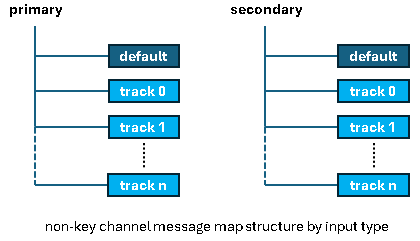
Mapping table setup format (sequencer specific SMF meta event):
<MapEvent> = {0xff, 0x7f, 0x2c+<length>, 0x00, 0x2b, 0x4d, <TargetMap>, <a>, <b>, <c>, <d>, <e>, [optional data bytes]*}

<length>: number of optional data bytes
<TargetMap>: target map (0x01:primary, 0x02:secondary, 0x03:both)

<a>..<e>: five 64-bit arguments, each represented by eight consecutive data-bytes starting with MSB (big endian)
example: a[63:0] = {a[63:56], a[55:48], a[47:40], a[39:32], a[31:24], a[23:16], a[15:8], a[7:0]};
note: for 32-bit backward compatibility, only lower 32 bits are used (sign extended)

arguments:
<a> : {TargetTrack, InputEventType[2:0], InputIntervalLo[13:0]}
<b> : {             InputEventType[2:0], InputIntervalHi[13:0]}
<c> : InputIncrementStep
<d> : {OutputMsg[15:0], 2'0, OutputIntervalLo[13:0]}
<e> : {                 2'0, OutputIntervalHi[13:0]}

<TargetTrack>: only used if <MapEvent> is placed into the conductor (very 1st SMF) track, else taken from SMF track ID#.

    - if placed into non-conductor tracks: always set this field to zero
    - special cases if placed into conductor track:
        - if nevative, tracks are selected backwards (e.g. -1 selects very last track)
        - if larger than number of SMF tracks (e.g. max. 0x3fff), the general default map is accessed

InputEventType[2:0]: 2 (key aftertouch), 3 (control change), 4 (program change), 5 (chan aftertouch), 6 (pitch bend)
InputIntervalLo/Hi[13:0]: input value interval low and high limits (detailed interpretation depends on input event type)
InputIncrementStep: input interval increment stepping (depends on input event type - see below)

    InputEventType[2:0]
    2 or 3: InputInterval*[13:7] = Value[ 6:0]; InputInterval*[6:0] = Key/Ctrl[6:0]; IncrementStep typically 0x80
    4 or 5: InputInterval*[ 6:0] = Value[ 6:0]; IncrementStep typically 1
    6     : InputInterval*[13:0] = Value[13:0]; IncrementStep typically 1

OutputMsg[15:0]: fix part of target output message type (status/channel + optional 1st data byte)

    - OutputMsg[7:0]: Status/channel (for channel messages, keep channel=zero since output track takes typically care)
    - OutputMsg[15:8]: 1st data byte (typically zero since OutputInterval* takes care about data bytes)
OutputIntervalLo/Hi[13:0]: output value interval low and high limits
    - provide range according to output message type (7 vs. 14 bit values) and target range values
    - low<->high swap allowed for inversion
    - for constant values or key and system messages, set OutputIntervalLo=OutputIntervalHi
    - if all Output* settings are zero, the input event will not get routed anywhere (filter function)

general note: If <length> is larger than 0x2c (44 data bytes), all Output* settings are ignored and remaining optional data bytes are taken as a long message. This can be used for SysEx or any other multi message mapping.
The player runs as a standalone console application more or less in background and is mainly controlled by the primary midi input device/controller. In addition, the computer keyboard controls sequence restart (CTRL+C) and sequence exit (CTRL+PAUSE/BREAK) flow control jumps.
For seamless system integration along with your faforite DAWs, software synthesizers, virtual midi controllers, etc. it is strongly recommented to install virtual midi routers/cables to connect playsmf with other applications. Especially since MIDI devices are typically blocked when opened by one client, it is possible to route additional (secondary slaved) input devices thru playsmf to all open output devices. This allows to hook real or virtual midi controllers (mixer applications, etc.) thru playsmf to all open outputs.
Labels are basically address markers defining entry-points for either jumps or interrupts into the smf sequence. Internally they represent numerical addresses pointing to the next midi event within the smf data stream. Address labels can have any (positive) numerical value as long as they get only used in combination with intrinsic flow control using jumps. However in combination with external interrupts, they have to follow a certain structure with rules (see interrupt section). Numerical values can be presented in decimal or hexadecimal (0x) notation.
Sequence entry-points can share multiple Labels simultaneously. For example different chord-inversions for the same chord-type and chord-key can get assigned to the same physical sequence unless you want to split them on purpose to build individual variations. Label auto-expansion makes use of this feature generating additional internal chord/variation Labels if they are not already defined.
Two Labels are always defined: "sequence-start" and "sequence-exit". "sequence-start" represents a label pointing to the very first event in your sequence while "sequence-exit" presents a label right after the very last event. Those labels can be used to restart or exit your sequence and can be triggered by either \<keystart>/\<keyexit> MIDI-keys or alternatively by \<ctrl-c> or <ctrl-pause break="">.</ctrl-pause></ctrl-c></keyexit></keystart>
One specific type of labels are Auto-Labels. Essentially they represent automatically generated internal labels and can only be used in combination with relative jumps since their absolute addresses are not puplic.
If the smf doesnt provide individual pattern with dedicated labels across all chord-scales/inversions and variations, the player expands existing base-labels automatically.
Immediate labels define sequence sections which allow to interrupt immediately without waiting for the next sync point if an interrupt request is pending. Pending notes will be interrupted and the sequencer jumps immediately to the requested sequence entry point.
Typically looped sequences will not get retriggered on consecutive subsequent requests for the very same label unless the label is marked as re-trigger type.
Jumps are basically branches jumping immediately to target address labels. The target label can either be a (positive) absolute address or a (negative) relative number of labels for relative backward jumps or looping. Numerical values can be presented in decimal or hexadecimal (0x) notation.
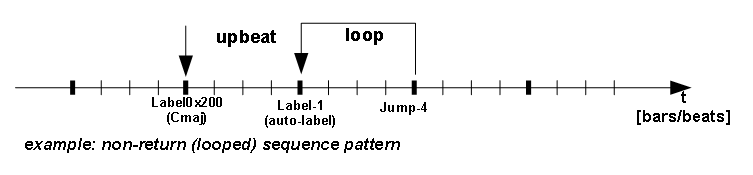
Interrupts are basically breaks stopping the current midi flow by jumping to defined target address labels. They are typically requested by external MIDI (NoteOn/Off) events either directly by single keys or thru the chord recognition module. Since both NoteOn and -Off events can request individual interrupts with different target address labels, its possible to trigger different sequences by either pressing keys down or releasing them.
Interrupt vectors (target Labels in binary / hexadecimal notation):
general binary vector structure: 0bvvvvttttUiiirrrr
 vvvv:variation
 tttt:key/chord-type
  0x0:direct key w/o chord recognition (0x00..0x7f)
  0x1:5th or single key thru chord recognition
  0x2:major triad or 7th
  0x3:minor triad or 7th
  0x4:sus2 triad
  0x5:diminished triad
  0x6:augmented triad
  0x7:maj7
  0x8:m7
  0x9:7
  0xa:mmaj7
  0xb..0xe: unused (reserved for extensions)
  0xf:internally used for auto-labels
 U: 0:key down; 1: key up
 iii:inversion (0: root down)
 rrrr:root (0x0..0xb; C..B)

#decoded value examples
0x000..0x07f single key pressed down w/o chord recognition
0x100..0x10b 5th root C..B no inversion
0x110..0x11b 5th root C..B inverted
0x120..0x12b single key root C..B
0x200..0x20b major triad root C..B no inversion
0x210..0x21b major triad root C..B 1st inversion
0x220..0x22b major triad root C..B 2nd inversion
0x300..0x30b minor triad root C..B no inversion
0x310..0x31b minor triad root C..B 1st inversion
0x320..0x32b minor triad root C..B 2nd inversion
In order to guarantee smooth song sequence flow transitions, interrupts are only taken at either jump marker positions or certain user-defined midi events such as metronome clicks, controller data, meta events, etc. within the song sequence. This approach decouples interrupt syncronisation completely from fixed time signatures or grids in terms of bars, beats, ticks and refers only to so called interrupt (INT) positions - basically song positions where interrupt transtions are allowed.
Interrupts are controlled by command line parameter #9 (0x0ff = off, else enabled) using a similar event mask filter scheme as used for recording in the following binary/hexadecimal format:
binary format: 0b_0mmmmmmm_MMMMMMMM_e_fffffff_FFFFFFFF
0mmmmmmm: data mask (7 bit)
MMMMMMMM: status mask (8 bit)
0fffffff: data filter (7 bit)
FFFFFFFF: status filter (8 bit)
e: disable/enable event playing (0: use event only for interrupt sync w/o playing)
example argument settings (hex values):
Please note that interrupts are still triggered on Jump position markers even though the interrupt argument might be turned off (0x0ff).
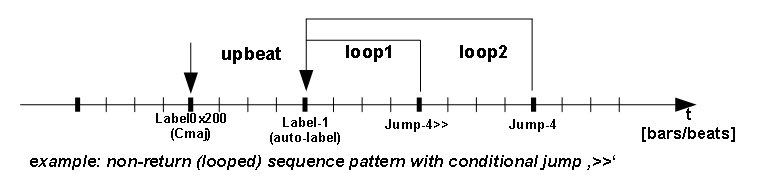
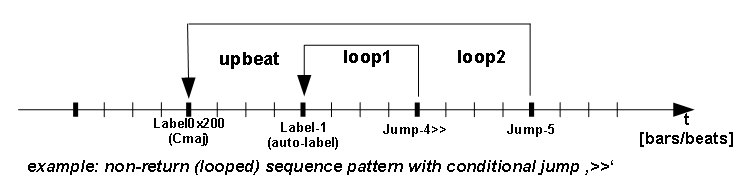
One specific jump type is return-from-interrupt. Actually there are two basic types of sequences: "non-return" (e.g. ending in a infinite loop) or "return" ending with an "return-from-interrupt" jump. Return-type sequences terminate with an immediate jump back to the caller sequence bei either restarting the caller sequence from its interrupt entry point (Jump-1) or from the latest label playing when interrupted (Jump-3).
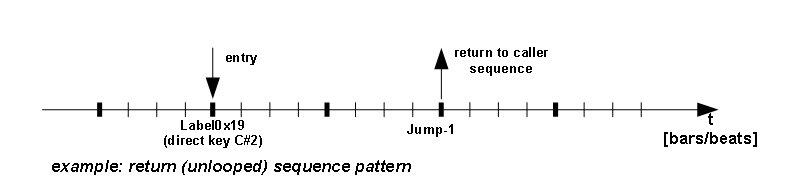
Typically jumps and interrupts are taken unconditional and immediate unless they are marked as conditional ones.
This is a regular Jump, however the sequence doesnt branch if a non-return interrupt is pending and continues beyond the jump marker without clearing the interrupt flag. Therefore the interrupt is not taken immediately and the sequence will continue until the next interrupt sync point (INT) is reached. This allows to run intermediate transitional sequences before jumping to the target sequence.
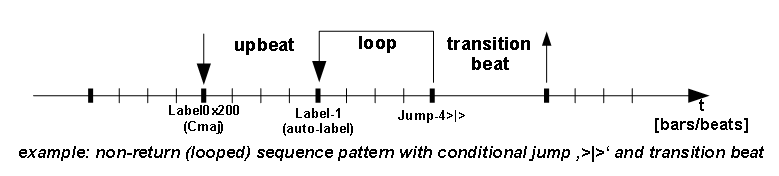
This is a regular Jump, however the sequence doesnt branch if a retrigger interrupt is pending and continues as normal beyond the jump marker. This behavior can be used to transition into a new variation without explicitly requesting a variation change.
A set of Labels in the range from 0x000-0xfff is called a variation. To include multiple variations, the player takes the most significant Label digits as a variation number. So for instance Labels between 0x0000-0x0fff belong to variation 0 while Labels between 0x1000-0x1fff belong to variation 1.
Variations can get switched by the keys right below the Mute-zone. If you switch from a non-return (looping) sequence to a return (one-shot) sequence variation, the variation will return back once finished, else you'll stay in the new variation. This allows to implement variations with fills or breaks in contrast to regular main (looping) variations.
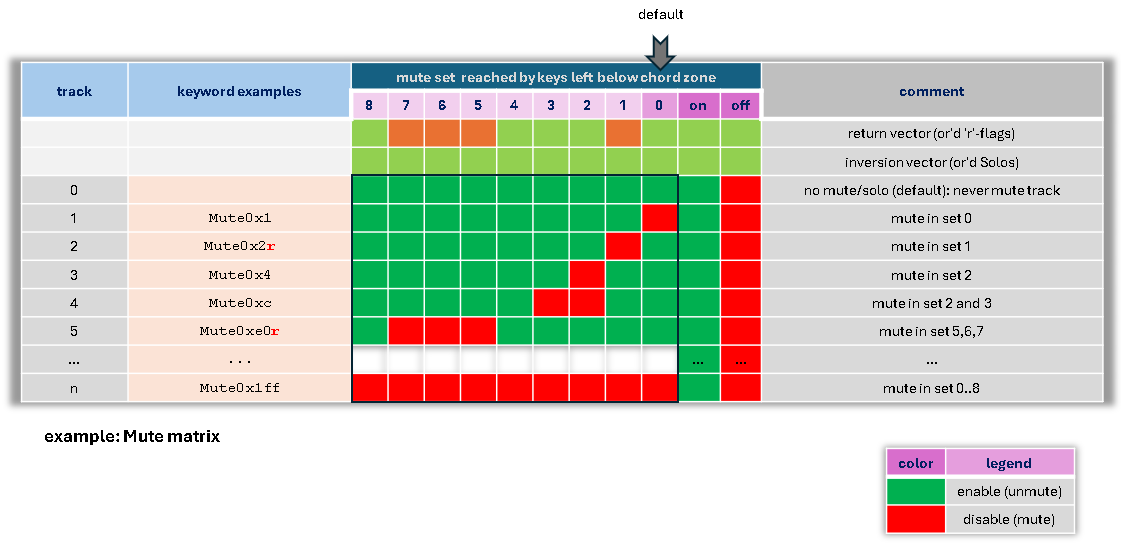
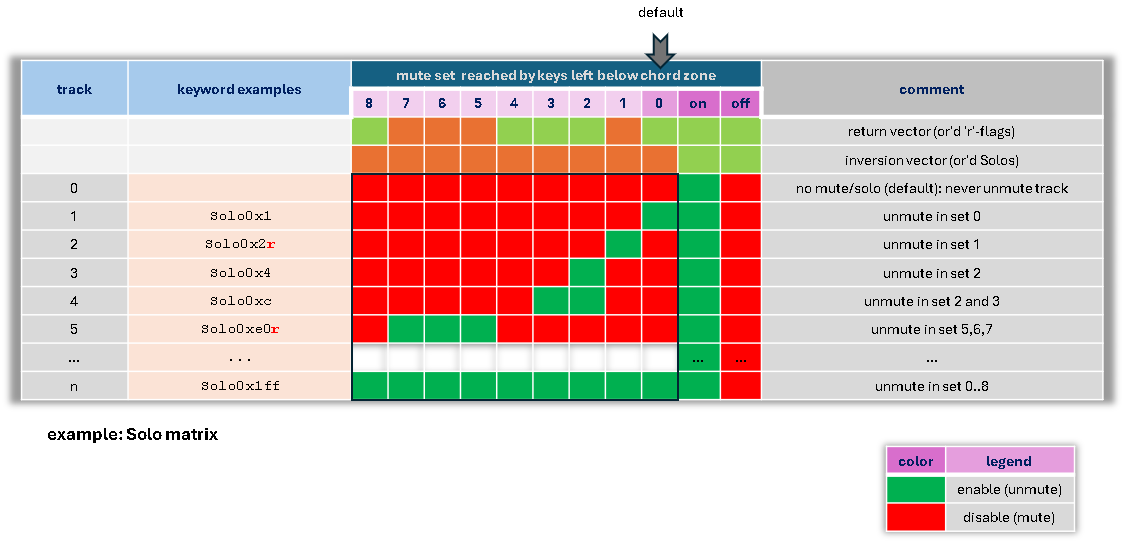
Mute sets are basically binary vectors allowing to mute or unmute multiple tracks simultaneously while playing. To guarantee smooth, syncronous mute/unmute transitions, they are only taken at interrupt sync edges similar to sequence transitions. All tracks in combination with defined mute sets spawn a matrix, which can be filled by individual "Mute<vector>" and "Solo<vector>" trackname keywords, where each <vector> represents the numerical binary mute/unmute row information for the given track.
The Solo keyword acts similar to Mute, however takes additionally the inversion vector into account. The inversion vector is basically an or'd version across all Solo vectors.
<vector> settings<vector> value doesnt include default all -on and -off sets as they are always present and pre-filled<vector> settings MSBIn addition to regular non-return mute-sets, mute-sets can get flagged as 'return' types by having a trailing 'r' after the numeric vector value. Return-type mute-sets will automatically return to the previous Mute-sets on the next sequence transition event (Jump or interrupt). This allows to build fill or intro variations using mutes or solos in addition to regular sequence variations.
If there are no user defined mute sets available, the default set is 'all-on', else it will default to the 1st user defined set (0).
In addition to mute-sets, it is possible to toggle individual mutes per track while playing. Single mutes are accessed with the keys below the mute-set zone. However this feature is currently limited to the first track only since there is not much use of single mutes/unmutes.
A style-like smf structure starts typically with an initialization sequence at the very beginning. This part contains all events (sysex, controller, local control off, etc.) to setup the midi equipment. Once finished, it can immediately transition into a "silent-loop" just waiting for input. In order to hear if the player is alive, you can additionally put a quiet metronome click into the silent-loop. After that, the data section starts containing all data for the various chord types (major, minor, sus2, etc.). At the very end, you can have an exit-sequence which gets only transmitted when the player finishes (e.g. turn local control on, etc).
playsmf.exe <MidiFile> <TimerPeriod> <DefaultMidiOutputDevice> <DefaultMidiInputDevice> <TimeOut> <Channel> <Ofs> <REC> <INT> <KeyStart> <KeyExit>
playsmf.exe - application<MidiFile> - input SMF file *.mid<TimerPeriod> - windows timer resolution in ms or -1 if not used<DefaultMidiOutputDevice> - default midi output device ID or device name if quoted<DefaultMidiInputDevice> - default primary midi input device ID or device name if quoted<TimeOut> - primary midi-input timeout in ms or -1 if not used (player will close if there is no midi activity)<Channel> - primary midi-input channel filter/router used for midi-thru functionality<Ofs> - primary midi in key offset [-127:0:127]<REC> - midi recording filter (default 0xff - off)<INT> - interrupt message control filter (default 0x00008000 - all messages)<KeyStart> - start key (EntryLabel)<KeyExit> - exit key (ExitLabel)ThruZone ::= (<LowKey> <HighKey> <Track> <Delay> <KeyOffset> <Von> <Voff>)If the smf contains port-select meta-events where port numbers doesnt match to target device-IDs, you can apply additional port->device mappings.
<0x0001ppDD> maps smf-port <pp> to device <DD><0x0003ppDD> same as above, but devices count reverse starting with max-1 device numberIn case you want to hook additional real or virtual midi-equipment such as controller, mixer, keyboards, etc. to your output devices while playing, you can route them thru playsmf attaching directly to midi-tracks in track-follow mode. This might be required for devices using single client midi drivers. Typically those drivers dont allow to open multiple clients in parallel. Since this option works in track-follow-mode, each incoming channel is routed to one corresponding track starting from track <TT>.
<0x0002TTDD> opens secondary slaved midi input device <DD> attaching to track <TT><0x0004TTDD> same as above, but devices count reverse starting with max-1 device numberIn order to reset midi equipment upon player start and/or exit, you can optionally define individual midi messages (typically controller reset messages) sent across all devices/channels before the player starts and after the player exists.
<0x01mmmmm0> start midi message (play given message across all channels before smf sequence starts)<0x02mmmmm0> exit midi message (play given message across all channels after smf sequence stops)<0x03mmmmm0> start/exit midi message (play given message across all channels before and after smf sequence starts/stops)In order to store command line arguments with the smf, the player supports sequencer specific meta messages to set and/or override command line arguments. Argument data is stored in 64-bit integer values <D> starting from argument address <A> followed by one or more arguments.
<0xff> <0x7f> <length> <0x00> <0x2b> <0x4d> <0x00> <A[63:56]> <A[55:48]> <A[47:40]> <A[39:32]> <A[31:24]> <A[23:16]> <A[15:8]> <A[7:0]> (<D[63:56]> <D[55:48]> <D[47:40]> <D[39:32]> <D[31:24]> <D[23:16]> <D[15:8]> <D[7:0]>)*The player exits with different return codes based on the exit scenario.

 example video link