
Menu
▾
▴

How to use
Corona Ui Editor
Install
Unzip the file CoronaUiEditor{vers}.zip
Usage
Double - click on CoronaUiDesigner application for Windows.
For MacOs double - click the launch.command file.
Inside the application you have a file menu : new / open / save project.
New project
Allow you to create a new corona Ui Project, which will be used to generate your Corona SDK project.
In the Creating New project dialog, you will have :
Project directory ( path to your corona project )
Project Name ( not used at the moment )
Width ang height of your application ( not used yet - default is 640x 960 )
Open Project
Allow you to open a saved project.
Save Project
Save the project as an xml file.
Build > Build All
Generate the Corona SDK project inside a 'generated' sub - folder.
If you open your Corona SDK simulator with the auto refresh option,
you will be able to modify your application on Corona UI Editor, generate (ctrl + G) and see your changes directly.
The Live build process should work too ( not tested yet ).
Build Screen is not used yet.
How to fill my app / create screens
After the create Project you will have a black page, some widgets in the widgets view and
App Configuration as your only project object.
App Configuration is a pseacial screen that allows you to have a default configuration for your entire Corona App.
You will be able to set backgroundColor ( in the properties view, when App Configuration is selected ) to red by example,
it will be inserted within the main.lua of your application and then your default application background will be red.
You can also add widgets on this screen. this is convenient to create a menu bar.
Add page
Click on the add page button to be able to create a new Corona screen.
Enter the page's name. ( by example loginScreen)
Now you can drag and drop from the widgets view inside the page ( white center part ).
Let's try with the image widget.
A graphical object appears on your blank page, and some data is now shown in the widget property view.
Corona SDK developpers will be familiar with those.
Now just click on build > build All, open the [myProject]/generated folder inside the corona simulator ( or Sublime ) and Voila !
You can delete widget and pages with the interface buttons dedicated.
Width and height are in percent of display.contentWidth and display.contentHeight.
The application is intended to be use simultaneously with corona simulator like this : ( better with two screens )
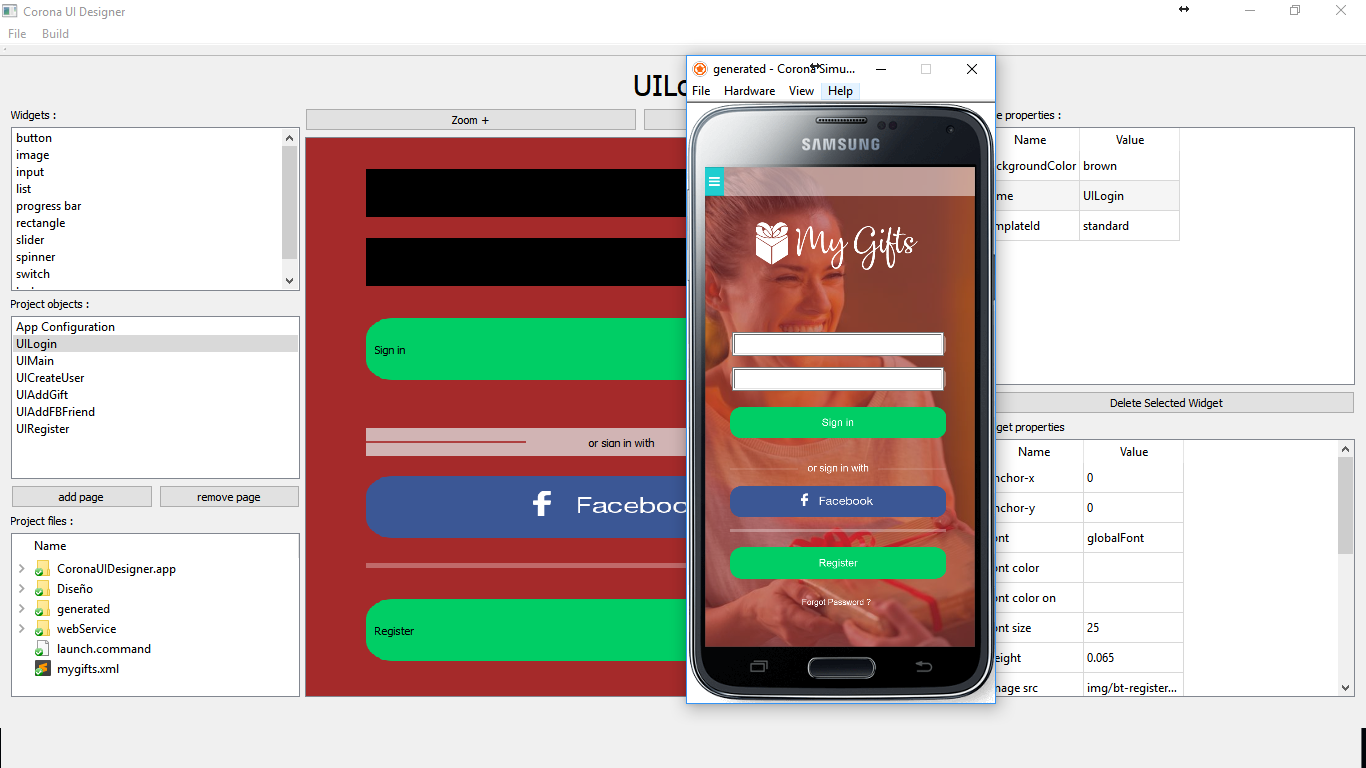
I am still working hard to remove all bugs and make the application usable, do not hesitate if you want to contribute.
happy coding !
Project Members:
- sebius (admin)

