LinuxBuild

CDE for Linux is currently Alpha Quality
| We are currently requesting that all contributions to the project are licenced under the MIT licence. Find out why? |
WARNING: THIS GUIDE IS FOR ADVANCED USERS FOR USE IN BUILDING AND PORTING.
Before you compile, please check the status of your distribution/platform. It will save you a lot of hassle.
CDE on Linux is not yet to the point of being simple to package for distribution or a relatively simple to compile from the source archive.
1) Build Prerequisites
1.1) Supported Platforms
The initial Linux port is intended to be a minimal impact port, changing just what is required to make it build and run, so no warning fixes, refactoring, changing the build system or other niceties have been implemented as yet.
So far I've built and run CDE on the following configurations;
- Xubuntu 11.10 64-bit x86, Linux 3.0.0
- Xubuntu 11.10 32-bit x86, Linux 3.0.0
- Debian Squeeze 6.0 32-bit x86, Linux 2.6.32
- Xubuntu/Ubuntu Server 12.04 32 bit x86, Linux 3.2.0
- Debian Squeeze 6.0 ARMv5el, Linux 3.1.9+ (Raspberry Pi)
Built and not working yet on;
- Debian Wheezy D1 32-bit x86, Linux 3.2.0
- Debian Sid
- Archlinux
Gets stuck on blue splash screen (dthello), suggesting dtwm not starting.
1.2) Parts of CDE that are not building yet
- dtinfo - A program for displaying the guide series of books.
- dtksh - A version of the ksh shell with additions for creating GUI applications.
- documentation - Pages required for dtinfo.
1.3) Known Issues with built components
- dtcreate - Used for creating new action icons for menus etc, fails to startup with Tooltalk error - tt_ptype_declare (TT_ERR_PTYPE)
- dtmail - "Mailer has not been properly installed, and cannot run because the execution group is incorrectly set."
- dtcm/rpc.cmsd - calendar manager. There are a variety of problems with this.
1.4) Install Dependencies
Compile-time and run-time requirements
On debian-like systems (including Ubuntu) install the following packages;
- git (for downloading from source repository)
- build-essentials or build-essential
- libxp-dev
- libxt-dev
- libxmu-dev
- libxft-dev
- libmotif or libmotif3 or libmotif4 (openmotif)
- libmotif-dev (openmotif)
- libx11-dev
- libfreetype6-dev
- tcl-dev
- ksh (required for database to any script, and probably dtksh building)
- m4 (required for nsgmls building)
- ncompress (old style unix 'compress' needed when building help files)
- xfonts-100dpi (for nicer looking fonts)
- xfonts-100dpi-transcode or xfonts-100dpi-transcoded
- rpcbind (or portmap) requires running in insecure mode (-i) see section 1.6 below
- bison
- xbitmaps
On Debian Squeeze,
- byacc
Do not install the following items
- Lesstif
- imake
1.5) Generate additional locale support
Generate system support for German, Spanish, French, and Italian locales:
On Ubuntu
- sudo locale-gen de_DE
- sudo locale-gen es_ES
- sudo locale-gen fr_FR
- sudo locale-gen it_IT
On Debian
Run dpkg-reconfigure locales and select the following off the list
- de_DE ISO-8859-1
- es_ES ISO-8859-1
- fr_FR ISO-8859-1
- it_IT ISO-8859-1
For generic Linux
Edit locale.gen, usually found in /etc and uncomment (remove the # space from the start of the line) the following lines;
- de_DE.ISO-8859-1
- es_ES.ISO-8859-1
- fr_FR.ISO-8859-1
- it_IT.ISO-8859-1
Then run the locale-gen to generate them
locale-gen
1.6) Modify rpcbind to run in insecure mode
Modify rpcbind to run in insecure mode (-i)
On Ubuntu
Edit /etc/init/portmap.conf
On Debian
Edit /etc/init.d/rpcbind
Find the line "OPTIONS="-w" and replace with "OPTIONS="-w -i"
Note: On Debian Squeeze this might be /etc/init.d/portmap
Restart the service or reboot the machine
2) Compiling
2.1) Get a copy of the repository
Use the git clone command here
https://sourceforge.net/p/cdesktopenv/code/
Or get a copy of the source from a the Download Page. Extract the archive into a directory called 'cdesktopenv-code' (this isn't a strict requirement, but will make the rest of the instructions easier to follow)
2.2) Link in X11 headers
The X11 library headers need to be symlinked into the build tree.
cd cdesktopenv-code/cde
mkdir -p imports/x11/include
cd imports/x11/include
ln -s /usr/include/X11 .
2.3) Attempt to build
cd cdesktopenv-code/cde
make World
The build will terminate with a successfully built message.
After you've built World, it should have compiled up the libraries and quite a few of the apps.
To check look in cdesktopenv-code/cde/exports/lib there should be 10 different CDE libraries.
2.4) Test running some applications
(Replace /path/to/ with the path to the location of your source tree.)
export LD_LIBRARY_PATH=/path/to/cdesktopenv/cde/exports/lib
cd cdesktopenv-code/cde/programs/dtcalc
./dtcalc
3) Installing
The install actions should only need to be done once on install, or on reinstall of later versions.
(Replace /path/to/ with the path to the location of your source tree.)
# Install CDE
cd cdesktopenv-code/cde/admin/IntegTools/dbTools
sudo ./installCDE -s /path/to/cdesktopenv-code/cde/
# Run the linux post install script (this does have a couple of errors reported)
cd cdesktopenv-code/cde/admin/IntegTools/post_install/linux
sudo ./configRun -e
Note: This may terminate with inetd errors. These are harmless and can be ignored.
# It seems this dir needs to be writable by every user of CDE
sudo chmod -R a+rwx /var/dt
# Directory required for calendar service
sudo mkdir -p /usr/spool/calendar
4) Running
4.1) Running (Single User)
Switch to virtual terminal and log in as root
# kill off xserver. For example, if you are running lightdm:
service lightdm stop
# note, you do not need to run rpc.ttdbserver. If you *really* want to,
# then start it with /usr/dt/bin/rpc.ttdbserver and confirm its running
# rpcinfo -p
You can log off root and into your regular user here
# add /usr/dt/bin to your PATH
export PATH=$PATH:/usr/dt/bin
export LANG=C
# Start CDE
startx /usr/dt/bin/Xsession
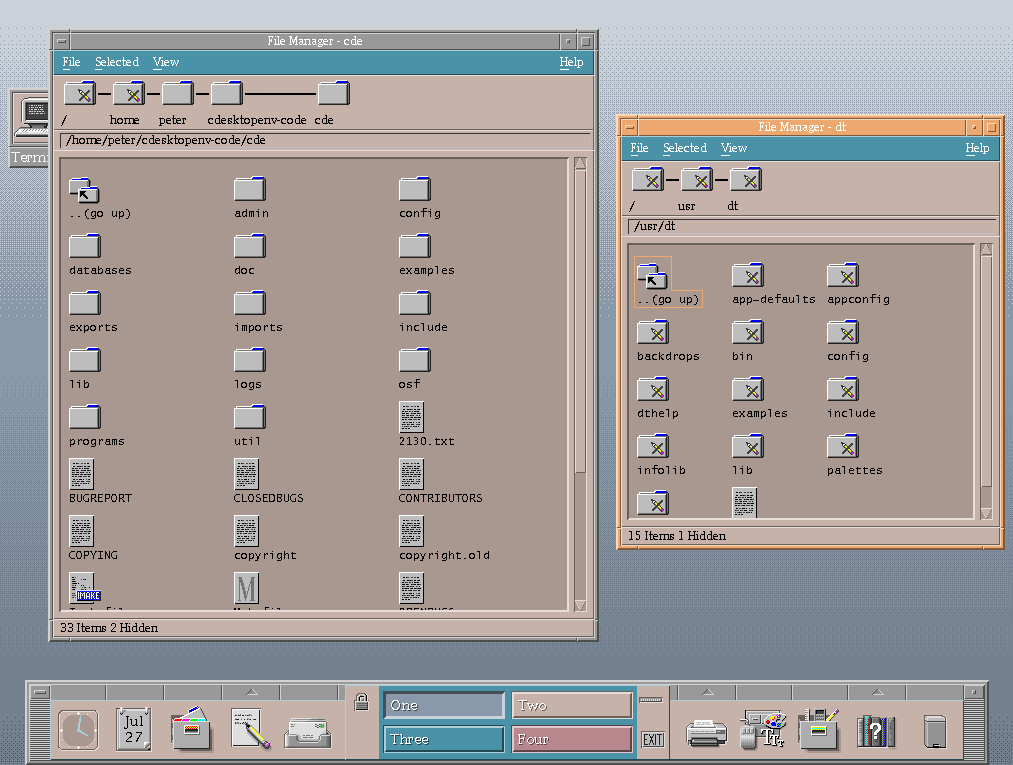
This should boot into the CDE desktop
(You can change the export LANG=C to LANG="fr_FR.ISO8859-1", LANG="de_DE.ISO8859-1", LANG="es_ES.ISO8859-1" or LANG="it_IT.ISO8859-1", for non English languages.)
4.2) Running (Login Manager - dtlogin)
Switch to virtual terminal and log in as root
# kill off xserver. For example, if you are running lightdm:
service lightdm stop
# note, you do not need to run rpc.ttdbserver. If you *really* want to,
# then start it with /usr/dt/bin/rpc.ttdbserver and confirm its running
# rpcinfo -p
export PATH=$PATH:/usr/dt/bin
export LANG=C
cd /usr/dt/bin
./dtlogin
This should start the login screen.
(You can change the export LANG=C to LANG="fr_FR.ISO8859-1", LANG="de_DE.ISO8859-1", LANG="es_ES.ISO8859-1" or LANG="it_IT.ISO8859-1", for non English languages. Or choose a language from the dtlogin UI.)
4.3) Running (Using lightdm/gdm/kdm login manager)
Follow the instructions on this sub page to create a xsession file to allow a CDE session to be chosen from lightdm/gdm/kdm list of login sessions.
2 - More Applications

4 - The Style Manager
5 - The File Manager
6 - Just Another Window Manager
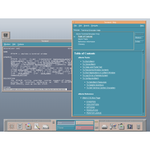
3 - Help Systems
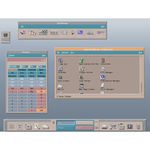
1 - Applications