zxED Wiki
Utility for viewing ZX Spectrum emulator snapshot files.
Status: Alpha
Brought to you by:
luny

Pressing the 'Show bitmap' button will display a dialog allowing you to search though the snapshots memory and look for bitmaps used within the game.
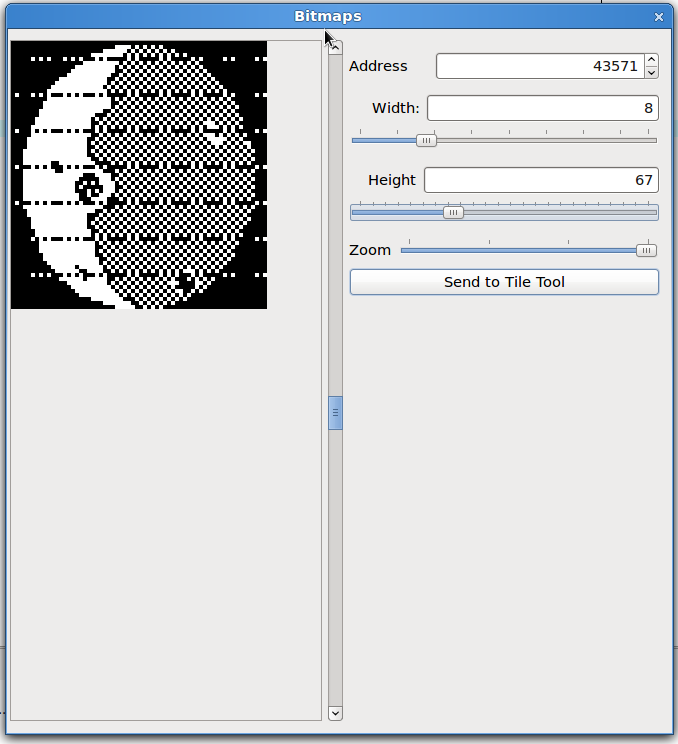
The dialog can be enalarged which will give a bigger area in which to display any bitmaps.
The size of the bitmap being viewed can be changed with the width and height sliders.
The address can be changed by either byte by byte using the address numeric spinner or by using the scrollbar, which is quicker but less accurate.
The size of the pixels used can be scaled up to x4 using the 'Zoom' slider control.
Any image found and displayed can be copied over to the 'Tile Tool' by pressing the 'Send to tile tool' button.
The tile tool allows you to place bitmaps on a canvas in order to create a picture of bitmaps or create a scene using background tiles.
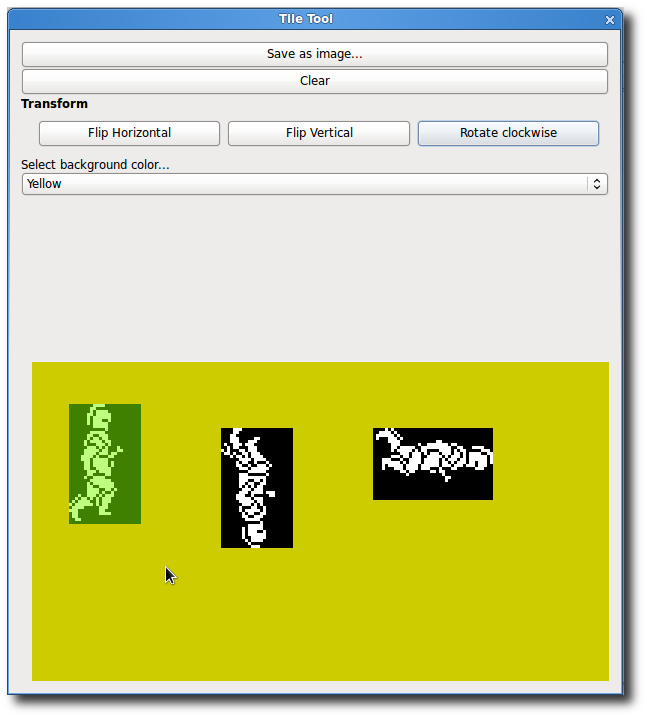
The 'Save image...' button will save the tile tool output as a .png file.
'Clear' will remove all objects from the canvas area.
The background colour of the canvas can be changed by selecting a ZX colour from the dropdown control.
Clicking on a tile will highlight it as the selected image. This tile can then be dragged around the canvas. Also the transform buttons will act on that selected tile.
Pressing 'Flip Horizontal' or 'Flip Vertical' will flip the pixels in the given axis.
Pressing 'Rotate' will rotate the image 90 degrees clockwise.
