
Menu
▾
▴

create-unit
Creating units
This section explain how you can create units and how to set their properties. To create a unit choose Menu -> File -> New -> Unit or click the New unit button on the toolbar (identified by a gladiator). An input dialog is shown. Type here the id of the unit. You can use alphanumeric chars (A-Z, 0-9, a-z), spaces and underscores(_) only. The name should be unique. When you confirm your choice the program scans the library looking for other units with the same id. If no other unit with that name is already stored in your library a panel like the following is opened in the window.

If another unit has the selected id you will be asked to change it. If you choose not to change it when you save the new unit the older one will be overwritten.
The panel is subdivded into 6 tabs. Each tabs contians some fields:
- The general properties tab;
- The graphical properties tab;
- The attacks and resistences tab;
- The terrain properties tab;
- The other properties tab;
- The WML tab.
The panel conatins one field for each unit field. An overview and the official explanation of fields can be found on the Wesnoth Wiki. Here is reported a brief description of each field following the order used on the panel.
General properties tab
This tab contains the main properties of a unit such as its recruitment cost and its level.
The list of fields can be edited with this tab is:
- Race: is used to make shortcuts to describe units with similar names. Units from the same advancement tree should generally have the same race. Also, units with the same race should generally be recruitable by the same sides/factions;
- Alignment: affects how units perform at different times of day. Neutral units are unaffected by the time of day. Lawful units do more damage during the day and less at night. Chaotic units do more damage at night and less during the day. Liminal units do less damage during both night and daytime;
- Cost: when a player recruits a unit of this type, the player loses cost gold. If this would cause gold to drop below 0, the unit cannot be recruited;
- Hit points (HP): the maximum HP that the unit has, and the HP it has when it is created;
- Experience (XP): When this unit has experience greater than or equal to experience, it is replaced by a unit with 0 experience of the type that the value of advances_to refers to. All modifications that have been done to the unit are applied to the unit it is replaced by;
- Level: the amount of upkeep the unit costs. After this unit fights, its opponent gains level experience;
- Advances to: When this unit's experience is greater than or equal to the experience (XP) field, it is replaced by a unit of the type that the value of advances_to refers to. If this field is left empty it means the unit has no advancement (this is the greates level the unit can get to);
- Movement: the number of move points that this unit receives each turn;
- Usage: The way that the AI should recruit this unit, as determined by the scenario designer. The following are conventions on usage:
- scout: Fast, mobile unit meant for exploration and village grabbing;
- fighter: Melee fighter, melee attack substantially more powerful than ranged;
- archer: Ranged fighter, ranged attack substantially more powerful than melee;
- mixed fighter: Melee and ranged fighter, melee and ranged attacks roughly equal;
- healer: Specialty 'heals' or 'cures'.
- Description: (translatable) text displayed in the unit descriptor box for this unit. If no description is available leave this field empty, 'No description available...' will be shown.
Graphical properties tab
This tab is intended to be used to change the graphical properties of the unit.

The first five fields can be edited using one of the buttons next to them, the last field (ellipse) is edited by choosing one of the three values reported in the radio-button pane. The buttons reported next to each field perform the folowing function:
- Change: changes the image associated to the field. If you choose an image which dimensions are not the required ones you will be asked if you want to:
- change the image;
- use the scale macro (which scales the image to the right dimensions);
- discard your choice;
- Show: shows the image you have chosen to associate to the field. If no image has already been chosen (for that field) an error message is shown;
- Open folder: opens the folder containing the image you have chosen to use. If no image has already been chosen (for that field) an error message is shown.
The fields can be edit from this tab are:
- Image: Sets the base image of the unit, which is used on the map;
- Image icon: Sets the image used to represent the unit in areas such as the attack dialog and the unit image box in the sidebar;
- Profile: The portrait image to use for this unit type;
- Small profile: The image to use when a smaller portrait is needed than the one used for messages (e.g., in the help system). When this attribute is missing, the value of the profile attribute is used instead;
- Undead version: When a unit of this type is killed by a weapon with the plague special, this variation is applied to the new plague unit that is created, whatever its type. Defaults to the undead_variation set in this unit type's race;
- Ellipse: the ellipse image to display under the unit, which is normally team-colored.
Attacks and resistences tab
This tab is intended to be used to change the attacks of the unit and its resistences.

The resistences' panel describes how much damage the unit takes from different types of attacks. The values specified in the panel will replace the values associated to the movement-type. If you do not want to change those value do not select the flags "Use this value".
The attacks panel allows you to add/check/remove the unit attacks. The Add button will open a file chooser dialog. Surf your file system and choose a vali attack file. Usually attack files extension is "wwa". The Show button will display the WML code associated to the attack you have selected from the list. The Remove button will remove the attack you have selected from the unit attack list. The field "Attacks", displayed over the attack list, is used to set the number of times the unit can attack each turn.
Terrain properties tab
This panel contains the terrain properties. They set unit movement costs and defences.
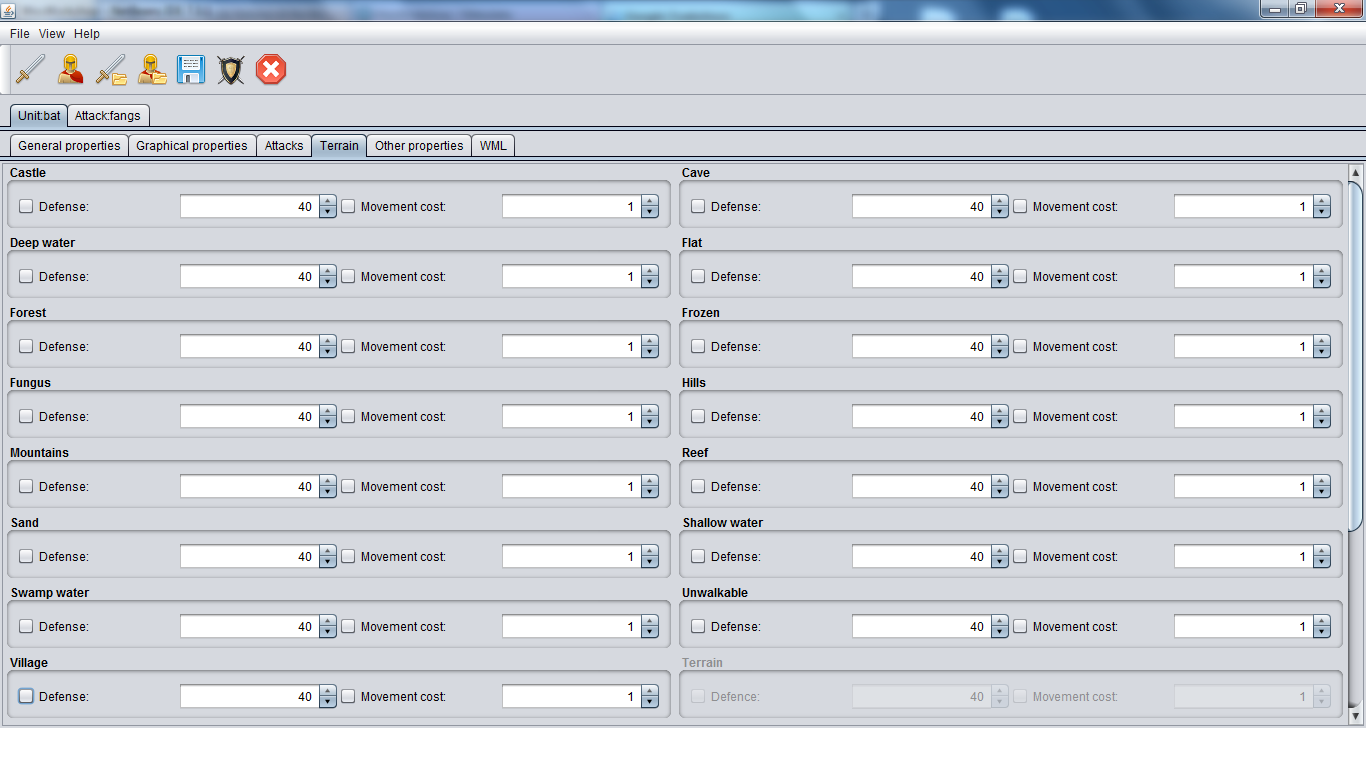
This fields are used to change the values defined by the unit movement type. For each terrain you can change the unit's defence and movement cost. To change any of them choose the panel of the chosen terrain, check the field flag ("Defence" and/or "Movement cost") and set the value using the spin.
Other properties tab
This tab contains minor properties.

- Gender: Determines whether the unit of this type can be or cannot be male/female. This property is used by the random name generator;
- Use race traits: Determines whether racial traits (see UnitsWML) are applied to this unit type;
- List: Not used by the game, but by tools for browsing and listing the unit tree. If this is 'no', the unit will be ignored by these tools, by default this property is ignored;
- Zone of Control: If "yes" the unit will have a zone of control regardless of level. If "no" the unit will have no zone of control. If the tag is set to "default", zone of control is dictated by unit level (level 0 = no zoc, level 1+ = has zoc);
- Number of traits: The number of traits that units of this type should receive when they are recruited, overriding the value set in the race. If the "use this value" check-box is not selected the race value is used. Usually units have two traits;
- Vision: The number of vision points to calculate the unit's sight range. Defaults ("use this value" not checked) to movement;
- Movement type: It is used to make shortcuts to describe units with similar terrain handicaps. Units from the same advancement tree should generally have the same movetype;
- Hide help: Determines if the unit type will appear in the in-game help.
WML tab
This tab contains the WML code associated to the unit. It can't be hand-edited but you can copy the code. There isn't an image of this panle because it's made up by a non-editable text-area only.
