Menu

Repository Setup

This page assumes you are using Tortoise Git to clone your repository.
If you are need assistance using the Git command line to clone your repository, considering watching a tutorial on YouTube on how to do so.


This page will teach you how to clone this repository to your computer and use it for development.

  1. Click the "Code" page.
  2. Copy your code at the "Read/Write SSH access" panel.
  3. With the way SourceForge is designed, the link they provide assumes you are using the command line, so you will need to modify the copied code to use it properly with Tortoise. Modify your code until it looks similar to this: ssh://[USERNAME]@git.code.sf.net/p/[PROJECT]/code, replacing [USERNAME] with your SourceForge username, and [PROJECT] should be the name of your project from the code page.
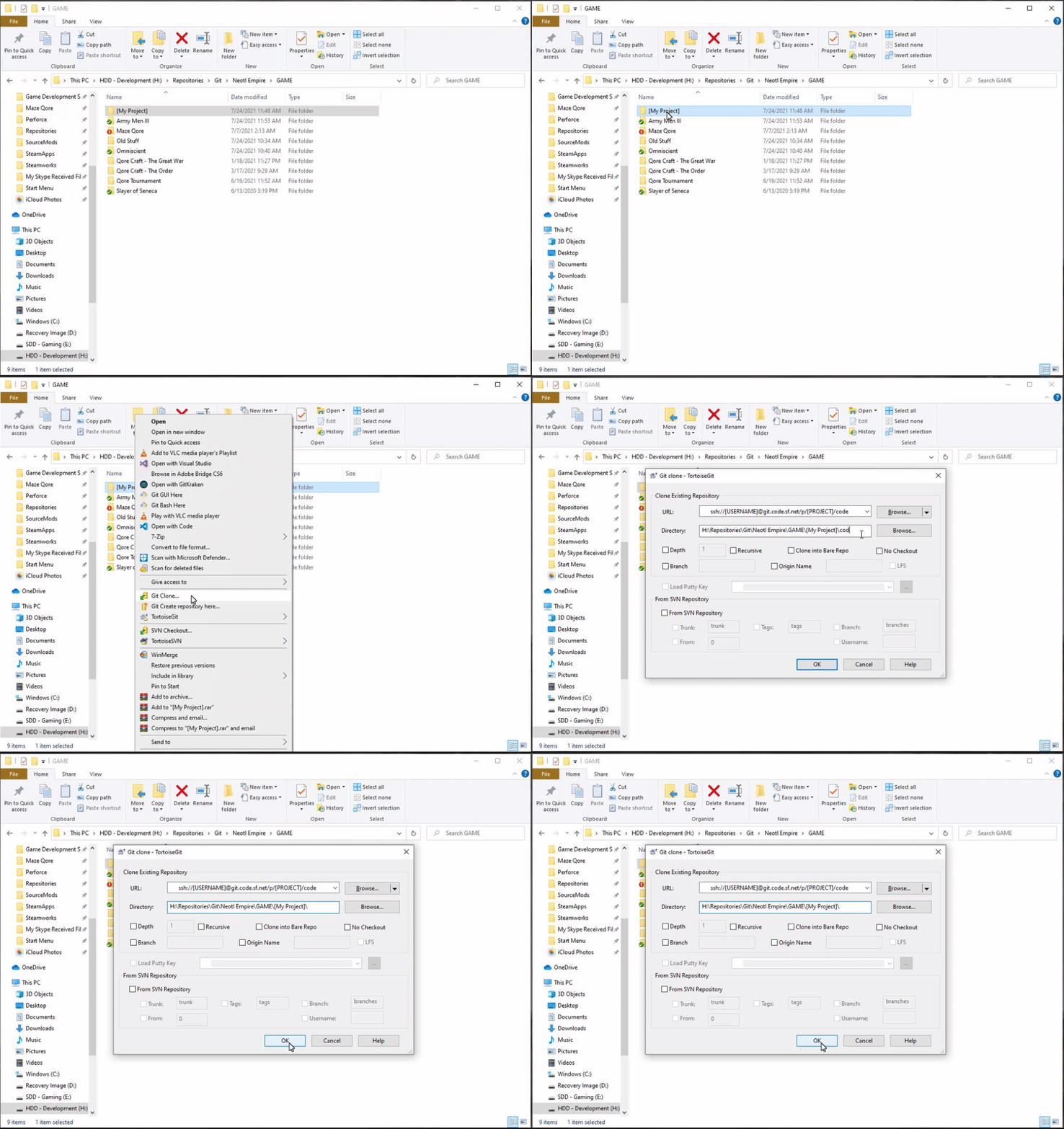

  4. Move to a directory to clone your repository, creating any folder structures as necessary.
  5. Right click on the desired folder or folder's void space (after opening the folder) and select "Clone Git".
  6. Adjust the directory link if necessary to direct to your desired folder.
  7. Click the "OK" button.
  8. Type your password.
  9. Wait as the files download to your computer.


Auth0 Logo