
WorkingWithImages

Permission is granted to copy, distribute and/or modify this document
under the terms of the GNU Free Documentation License, Version 1.3 or any later version published by the Free Software Foundation; with no Invariant Sections, no Front-Cover Texts, and no Back-Cover Texts. A copy of the license is available at: https://www.gnu.org/copyleft/fdl.html.
C O N T E N T S
2 Inserting Images in Documents
3 Manually Adjusting Image Sizes
5 Setting the Image Size in Tables
8 Targeting to Multiple Formats
T A B L E S
Table 4-I Sample Image
Table 6-I AutoImageSize Example
F I G U R E S
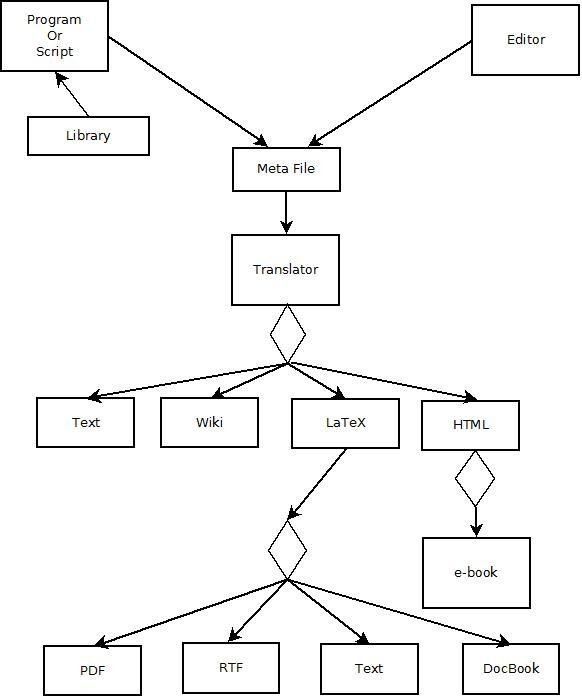
Figure 2-1 Documentation Process
Figure 3-2 1/3 Page size
Figure 3-3 1/2 Page size
Figure 4-a Neat pic, eh
1 Introduction
In reading this document, Familiarity with the STF Syntax Summary is assumed. (Download document PDF)
Automating the integration of images into a document can be tricky. This is because multiple images can be of different sizes so that just including the images can require hand tuning to make them look uniform. STF supports individually setting the display size of each image and also setting the display size for a set of images and letting STFXlate automatically adjust the magnification to make the image fit in that size.
The image size is specified as the dimensions of a box (Width x Height). LaTeX and RTF are set to automatically scale images to fill the box without distortion, HTML and Wiki(1) are set to stretch the image to fill the box, which can lead to distortion.
STF supports calculating, for HTML and Wiki, what scale to use to fill the box without distortion. The way this works is a file is read containing each image's size in pixels and, using that information, STFXlate calculates what is the best way to scale the image to best fill the box and keep the image aspect ratio intact.
This leaves the problem of how to get the file of image pixel sizes. It turns out that the ImageMagick program has this capability. ImageMagick is native to Linux/UNIX and downloadable for Windows(2). The AutoImageSize command informs SFTXlate to read the file of image sizes and perform the necessary scaling adjustment when an image file is included. This only applies to HTML and Wiki image files, LaTeX has no problem automatically scaling images(3).
2 Inserting Images in Documents
Images are inserted into documents via the .IE Image-path, [label], Caption -- Alias: .Figure command, where
-
Image-path is the path to the image file. For example MyPic.jpg is a typical file name and extension.
-
Label is an optional label that can be used to refer to the illustration. See Figure \ref{label} is a typical reference.
-
Caption is an optional caption. If specified the caption is included in the list of figures in the contents. If the caption is omitted, the image is treated as an anonymous image and remains unlabeled.
An example is:
.sf H,400x500 |
This looks like Figure 2-1.

3 Manually Adjusting Image Sizes
The size of images is set geometrically by specifying the dimensions of a box in which to place the image. When targeting to LaTeX, the image is automatically scaled so as to fit within the box without distortion. When targeting to HTML or Wiki, the image is stretched to fill the box, unless AutoImageSize is in use. When AutoImageSize is active, HTML/Wiki images are also scaled to fit within the box without distortion. RTF images sometimes need to be manually adjusted, see section 8.
The .sf (Alias .SetFigureSize) command is used to explicitly set the box size. The Syntax is:
.sf Code,specification, where the codes and specifications are as follows:
-
Code D -- Latex Document, default specification =
.sf D,width=\linewidth/2,height=\textheight/2,keepaspectratio=true,scale=5 -
Code H -- HTML document, specification=WxH. Where "W" is the width in pixels and "H" is the height also in pixels, default: .sf H,400x500.
-
Code T -- table, described later
-
Code C -- calculate table, described laterThis scaling stays in effect until changed.
Notes:
-
Some Wiki sites do not support image scaling. For those sites use .sf H,. This turns off scaling for HTML and Wiki formats. For example, http://tmpvar.com/markdown.html can be used to view Markdown (Wiki format) documents; however if a scale factor is used, images will not display.
-
The LaTeX configuration string is interpreted as follows:
* width=\linewidth/2 -- This sets the maximum image width to half of the current document line width.
* height=\textheight/2 -- This sets the maximum image height to half of the current document vertical height.
* keepaspectratio=true -- This says to keep the image aspect ratio intact, i.e. do not stretch the image so as to distort it.
* scale=5 -- This says to scale the image times 5. However, the scaling stops when the width or height hits a boundary because to scale further would violate the command to keep the aspect ratio intact. The result is to maximally fill the space without distortion.
- The macro processor can be used to advantage if it is necessary to switch between several preset sizes. an example is:
.se Third,[\*^]=^^.sf D,width=\linewidth/2,height=\textheight/3,keepaspectratio=true,\
scale=5^.sf H,300x300
.se Half,[\*^]=^^.sf D,width=\linewidth/2,height=\textheight/2,keepaspectratio=true,\
scale=5^.sf H,600x600
.SM Third
.SM Half
This defines two macros "Third" and "Half" which set the image size to a third and a half of a page respectively. An example is shown in Figure 3-2 and Figure 3-3 for one third and one half the screen size, respectively. (To use the macros enter them on a line, as in: \Third{}. This sets the scaling to 1/3 page.)
- Macros are described in the STF Syntax Summary. An analysis of the Half macro is as follows:
a. .se Half, -- define an escape variable named "Half".
b. [*^] -- make it a keyword macro.
c. = -- start macro definition.
d. ^ -- define the caret ('^') as the line separator.
e. ^ -- initial line defined by the macro is empty, so it is ignored.
f. .sf D,width=\linewidth/2,height=\textheight/2,keepaspectratio=true, -- define LaTeX figure scale
g. \ -- concatenate next line
h. scale=5 -- complete figure scale
i. ^ -- next line
j. .sf H,600x600 -- define corresponding HTML figure scale


4 Adding Images to Tables
Sometimes it is desirable to display an image or set of images in a table. This is done by using the \fig in-line command. The syntax is as follows:
\fig{Image-path,[label],Caption}Title, where
-
Image-path is the path to the image, as before.
-
Label is an optional escape variable to hold the assigned figure number. The image must have a caption (or it is not a figure), and the label may be referenced after it is defined by \esc{label}.
-
Caption is the caption to be used if the image is a Figure. The caption appears in the list of figures in the contents.
-
Title is the below image title and is used if the caption is omitted. Do not use both the caption and the title. If both the caption and the title are omitted, the image is untitled.Example:
.include mysymbols.sti |
The example is shown below:
The figure number was 4-a
Image 1 |
Image 2 |
|---|---|
|
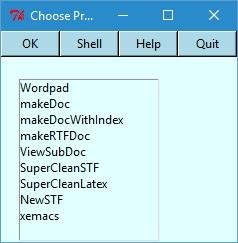
The figure number was 4-a
Notes:
-
Notice in the HTML representation that Image 2 is stretched out of shape. The actual image is roughly square, not rectangular. Controlling HTML scaling is discussed in the next section on using Auto Image Size.
-
Notice the use of .saveVariables placed at the end of the document to save the document generated symbols in a file. This saves the figure number in file mysymbols.sti, which is then included at the beginning of the document by .include mysymbols.sti. This allows the figure number to be referenced before it is created. This makes the figure number available the second and subsequent times the document is generated.
-
Notice that Image 1 is a figure because the title is inside of the \fig command; while Image 2 is not a figure because the title is after the \fig command.
5 Setting the Image Size in Tables
The .sf command is also used to scale LaTeX document images defined inside of tables. The syntax is as follows:
Code T -- The specification is for the dimensions of a box: WxH, where "W" is the box width in pixels and "H" is the box height in pixels. All cells containing figures in the table will be scaled to these dimensions. |
Examples:
.sf T, 400x600 -- define table cell size as 400 by 600 pixels (There are 72 pixels per inch) |
6 Using Auto Image Size
As mentioned previously AutoImageSize is used to read the file of image descriptions providing automatic scaling for HTML/Wiki images. AutoImageSize may be specified multiple times. The files are merged and the latest values override older ones. The syntax is:
.AI file-path, Size -- alias: .AutoImageSize, where
-
File-path is the location of file containing image size information.
-
Size is the desired image size in pixels. Width x Height. If the image size has not been specified, a default of 512x 384 is used.
The image size file should contain one line for each image being used in a .Figure command.
The file format is:
Image-name image-tag WxH ...
One image name per line. The image tag is usually the same as the image file extension and is ignored.
"WxH" is the image width and height of the figure in pixels. When a .Figure command is evaluated, the
auto-image-size file will be searched for the image name. If found, the image will be adjusted to fit within
the default window size.
Examples:
.AutoImageSize MyImageSize.txt, 640x480 |
Notes:
-
The identify command(4) may be used to automatically generate autoimagesize.txt.
-
Identify is native to UNIX and downloadable for Windows.
-
ImageMagick may be downloaded from: http://www.imagemagick.org/script/download.php.There are multiple distributions on this site, so scroll down to the Windows Binary
Release. -
ImageMagick recommends installing GhostScript first, this may be found at:http://sourceforge.net/projects/ghostscript/?source=dlp.
Examples: -
magick identify *.jp*>autoImageSize.txt will generate the file for JPEG images when using the DOS shell (cmd.exe)
-
magick identify *.jp* | Out-File -encoding ASCII -filepath autoImageSize.txt will generate the same file under Power Shell(5).
-
You can concatenate other extensions as in magick identify *.gif>>autoImageSize.txt. This will add the image data for gif files to autoImageSize.txt.
Example: Setup a 3x3 table array of images -- see table 6-I:
.AutoImageSize AutoImageSize.txt,300x400 |
As discussed in section 8, some Wiki sites are limited to two columns of images, so, since this site is one of them (SourceForge), the Wiki output is set to 3 rows by two columns, instead of the 3 by 3 format used for the HTML, PDF, and RTF versions.
Image |
Image |
|---|---|
|
|
|
|
|
|
7 Linking to Images
STF supports internally linking to tables and figures. This capability is the same for LaTeX, HTML, RTF, and Wiki formats. Internal links are supported via the \ref and \dref inline commands. \ref is used for linking to tables, figures, paragraphs, and lists; while \dref and \dpage are used to link to figures embedded in tables via the \fig command and also to link to arbitrary spots in a document that are specified via the \dlink command.
The reason for this dichotomy is the standard way of specifying figures in LaTeX allows LaTeX to automatically move the figures around in the document to minimize extra white space. This paradigm is in conflict with the table paradigm which specifies that whatever is placed inside of a table cell is stuck there. So to support figures inside of tables in LaTeX, it was necessary to use different LaTeX commands than the usual ones. HTML has no concept of pages, so it is not a problem putting figures inside of tables when targeting to HTML or Wiki formats, however the commands are honored under HTML and Wiki processing to make the command structure symmetric between the LaTeX, RTF, HTML and Wiki formats.
Examples, of how to reference the previously defined figures:
Normal figure: See Figure \ref{Example1, page}.\nl{} |
Normal figure: See Figure 2-1.
Embedded figure: See Figure 4-a.
8 Targeting to Multiple Formats
Generally when constructing a document that will be generated in multiple formats, it is wise to take the idiosyncrasies of the different formats into account. The limitations of the each format are as follows:
-
Wiki sites differ as to what capabilities are supported. So far they all support at least two column tables of images (or figures.) Some support scaling images, some do not. Some sites support vertical lines in tables, some do not (SourceForge, this site, does not.) If image scaling is supported, then uniformity of a set of images can be enforced by using Auto Image Size as discussed previously. Wiki output is directly generated by STFXlate. The output is then uploaded to a Wiki site, usually by cut and paste.
-
HTML supports the full symantics defined in this document, except HTML has no pages, so page references are ignored. HTML is directly generated by STFXlate.
-
PDF supports the full symantics defined in this document. PDF, generated via LaTeX, does have one idiosyncrasy. It moves figures and tables so as to minimize white space. The effect can be avoided for tables if long tables are used. (PDF is generated by operating on the LaTeX output of the translator (STFXlate) with program pdflatex -- see the STF Syntax Summary for details.)
-
RTF supports interoperating with word processors, such as MS Word, Libreoffice, FrameMaker, etc. The contents and index generation are automatically disabled. They just get in the way when merging with other data. (RTF is generated by operating on the LaTeX output of the translator (STFXlate) with program latex2rt -- see the STF Syntax Summary for details.)
F O O T N O T E S
(1) Not all Wiki implementations support scaling images. SourceForge, for example, does not support scaling.
(2) See the STF Syntax Summary for details.
(3) See section 8 for details on the different output formats.
(5) The out-file applet is necessary under Power Shell because the default text encoding for Power Shell is Unicode, not ASCII
Related
