
Menu
▾
▴
mtpaint-user — This list is for mtPaint users to give feedback
You can subscribe to this list here.
| 2006 |
Jan
|
Feb
|
Mar
|
Apr
|
May
(4) |
Jun
(2) |
Jul
|
Aug
|
Sep
|
Oct
(5) |
Nov
|
Dec
|
|---|---|---|---|---|---|---|---|---|---|---|---|---|
| 2007 |
Jan
(7) |
Feb
(2) |
Mar
|
Apr
|
May
(2) |
Jun
|
Jul
|
Aug
|
Sep
|
Oct
(2) |
Nov
(4) |
Dec
|
| 2008 |
Jan
|
Feb
|
Mar
(2) |
Apr
(3) |
May
(2) |
Jun
(4) |
Jul
|
Aug
|
Sep
|
Oct
|
Nov
(1) |
Dec
(2) |
| 2009 |
Jan
|
Feb
(3) |
Mar
(1) |
Apr
(5) |
May
(1) |
Jun
(2) |
Jul
(2) |
Aug
(2) |
Sep
|
Oct
|
Nov
(3) |
Dec
|
| 2010 |
Jan
(7) |
Feb
|
Mar
(4) |
Apr
(2) |
May
|
Jun
(1) |
Jul
(3) |
Aug
|
Sep
(2) |
Oct
(1) |
Nov
|
Dec
(1) |
| 2011 |
Jan
(4) |
Feb
(1) |
Mar
(2) |
Apr
|
May
(1) |
Jun
(1) |
Jul
|
Aug
(3) |
Sep
(2) |
Oct
|
Nov
(5) |
Dec
|
| 2012 |
Jan
(3) |
Feb
(3) |
Mar
(3) |
Apr
(4) |
May
|
Jun
(2) |
Jul
(1) |
Aug
|
Sep
(1) |
Oct
|
Nov
|
Dec
|
| 2013 |
Jan
(3) |
Feb
(4) |
Mar
|
Apr
|
May
|
Jun
|
Jul
(1) |
Aug
|
Sep
(1) |
Oct
|
Nov
|
Dec
|
| 2014 |
Jan
|
Feb
|
Mar
(4) |
Apr
|
May
|
Jun
|
Jul
|
Aug
|
Sep
|
Oct
|
Nov
|
Dec
|
| 2015 |
Jan
|
Feb
|
Mar
(1) |
Apr
|
May
|
Jun
(3) |
Jul
|
Aug
|
Sep
|
Oct
|
Nov
|
Dec
|
| 2016 |
Jan
(2) |
Feb
(1) |
Mar
(1) |
Apr
(2) |
May
|
Jun
|
Jul
|
Aug
|
Sep
|
Oct
(1) |
Nov
(4) |
Dec
|
| 2017 |
Jan
|
Feb
|
Mar
(1) |
Apr
|
May
|
Jun
|
Jul
|
Aug
|
Sep
|
Oct
|
Nov
|
Dec
|
| 2018 |
Jan
|
Feb
|
Mar
|
Apr
|
May
|
Jun
|
Jul
|
Aug
|
Sep
(1) |
Oct
(2) |
Nov
|
Dec
|
| 2024 |
Jan
|
Feb
|
Mar
|
Apr
|
May
|
Jun
(11) |
Jul
|
Aug
|
Sep
|
Oct
|
Nov
|
Dec
|
|
From: Dmitry G. <wj...@us...> - 2024-06-20 18:39:51
|
Hello! On 20.06.2024 21:30, Dmitry Groshev wrote: > The next (wrapped) line is a command to do same in commandline mode: > mtpaint --cmd -f/open=input.png -i/rgb -p/load=uzebox.act -i/indexed > use=256 pal=current dither=none space=lxn -f/as=output.png Correction: mtpaint --cmd -f/open=input.png -i/rgb -p/load=uzebox.act -i/indexed pal=current use=256 dither=none space=lxn -f/as=output.png Because "pal=current" must precede "use=256" when there are less than 256 colors in the image. -- -= With best regards, Dmitry Groshev =- |
|
From: Dmitry G. <wj...@us...> - 2024-06-20 18:30:41
|
Hello! On 20.06.2024 20:14, Dan MacDonald wrote: > When I load an image into mtpaint, it replaces/updates the palette. > When you say "you convert the image to the palette" you mean by > manually recolouring every pixel? If you are playing some dumb pretend game, trying to find out when I get tired of BS, the when is right now, and the next move will be a ban from the list. This is your first, last, and only warning. > I realise mtpaint can reduce a RGB image to a defined number of > colours but I don't want that. I need it to reduce the number of > colours to those specified in a .act file. Said number is 256, which you certainly do know. Nothing in this world or any other prevents you from entering it into the input field. The next two lines are a script for doing the thing you "cannot": -i/rgb -p/load=uzebox.act -i/indexed pal=current use=256 dither=none space=lxn The next (wrapped) line is a command to do same in commandline mode: mtpaint --cmd -f/open=input.png -i/rgb -p/load=uzebox.act -i/indexed use=256 pal=current dither=none space=lxn -f/as=output.png And that is the end of it. -- -= With best regards, Dmitry Groshev =- |
|
From: Dan M. <al...@gm...> - 2024-06-20 17:14:43
|
Hello On Thu, Jun 20, 2024 at 2:05 PM Dmitry Groshev <wja...@gm...> wrote: > Naturally, this is exactly what the workflow is in mtPaint in this case. :-) > You open an image; you load a palette (that function can extract palette > from images too, no need to open an image for that); you convert the > image to the palette. When I load an image into mtpaint, it replaces/updates the palette. When you say "you convert the image to the palette" you mean by manually recolouring every pixel? I realise mtpaint can reduce a RGB image to a defined number of colours but I don't want that. I need it to reduce the number of colours to those specified in a .act file. |
|
From: Dmitry G. <wja...@gm...> - 2024-06-20 17:05:01
|
Hello! On 20.06.2024 17:42, Dan MacDonald wrote: > Huh? No I didn't. I had to convert my indexed image into RGB to > convert it back into a different index. Precisely. No hardship, that, and everything is scriptable in case it ever need be repeated a lot. > The "Convert to indexed" window needs a "Load palette" option, it seems. No it does not. Separate operations are separate because they need be combined in different ways, and building favorite combinations out of those parts is left as an exercise for the reader of the handbook's chapter 10, "Scripting". Which, coincidentally, could have been done in a mere fraction of time you wasted on this hangup. -- -= With best regards, Dmitry Groshev =- |
|
From: Dan M. <al...@gm...> - 2024-06-20 14:42:59
|
On Thu, Jun 20, 2024 at 3:26 PM Dmitry Groshev <wja...@gm...> wrote: > > Hello! > I see. Now why, exactly, have you ignored the step "In case the original > image is indexed, just convert it to RGB before loading the new palette"? Huh? No I didn't. I had to convert my indexed image into RGB to convert it back into a different index. The "Convert to indexed" window needs a "Load palette" option, it seems. |
|
From: Dmitry G. <wja...@gm...> - 2024-06-20 14:26:51
|
Hello! On 20.06.2024 16:15, Dan MacDonald wrote: > The steps that you described do not work for me. I have tried what you > described using the same options but that doesn't do what I want. > As soon as I load a palette in mtpaint , it replaces all of the > colours in the current image without trying to match them to the > nearest matching colour. I see. Now why, exactly, have you ignored the step "In case the original image is indexed, just convert it to RGB before loading the new palette"? Seems I will have to add "Converting an indexed image to a different palette" to "Tricks and Tips" after all, to have a nice handbook chapter and verse URL to point people at in case this happens again. -- -= With best regards, Dmitry Groshev =- |
|
From: Dan M. <al...@gm...> - 2024-06-20 13:15:39
|
Hi Dmitry The steps that you described do not work for me. I have tried what you described using the same options but that doesn't do what I want. As soon as I load a palette in mtpaint , it replaces all of the colours in the current image without trying to match them to the nearest matching colour. On Thu, Jun 20, 2024 at 2:05 PM Dmitry Groshev <wja...@gm...> wrote: > > Hello! > > On 20.06.2024 15:03, Dan MacDonald wrote: > > I don;t see how selecting "Use current palette" would be of ant use > > until it lets me load my palette file to, or select a second (open) > > image to extract a palette from maybe? > > Naturally, this is exactly what the workflow is in mtPaint in this case. :-) > You open an image; you load a palette (that function can extract palette > from images too, no need to open an image for that); you convert the > image to the palette. > I thought it should have been totally obvious, given that you already > noticed that "Palette->Load" in mtPaint does exactly what it says on the > tin. ;-) > > In case the original image is indexed, just convert it to RGB before > loading the new palette. > In case you need to convert many images to one palette, you can add a > script for that and bind it to a hotkey, or use the commandline mode. > Section 10 of the handbook: > https://mtpaint.sourceforge.net/handbook/en_GB/chap_10.html > > > -- > -= With best regards, Dmitry Groshev =- |
|
From: Dmitry G. <wja...@gm...> - 2024-06-20 13:05:09
|
Hello! On 20.06.2024 15:03, Dan MacDonald wrote: > I don;t see how selecting "Use current palette" would be of ant use > until it lets me load my palette file to, or select a second (open) > image to extract a palette from maybe? Naturally, this is exactly what the workflow is in mtPaint in this case. :-) You open an image; you load a palette (that function can extract palette from images too, no need to open an image for that); you convert the image to the palette. I thought it should have been totally obvious, given that you already noticed that "Palette->Load" in mtPaint does exactly what it says on the tin. ;-) In case the original image is indexed, just convert it to RGB before loading the new palette. In case you need to convert many images to one palette, you can add a script for that and bind it to a hotkey, or use the commandline mode. Section 10 of the handbook: https://mtpaint.sourceforge.net/handbook/en_GB/chap_10.html -- -= With best regards, Dmitry Groshev =- |
|
From: Dan M. <al...@gm...> - 2024-06-20 12:03:24
|
Hi Dmitry I'm sorry but it does not seem that mtpaint is capable of doing what I want yet. With your reply you have highlighted exactly where my missing feature is If I open the image I would like to convert to use my .act file then I navigate to Image -> Convert to Indexed, it is in the next window that I need a "Load palette from file" option or at least that would one logical way to implement this feature. I don;t see how selecting "Use current palette" would be of ant use until it lets me load my palette file to, or select a second (open) image to extract a palette from maybe? On Thu, Jun 20, 2024 at 12:27 PM Dmitry Groshev <wj...@us...> wrote: > > Hello! > > On 19.06.2024 03:36, Dan MacDonald wrote: > > If I have a (24/32 bit RGB) image loaded in GIMP I can use its Image > > -> Mode -> Indexed option to convert the current image to use the > > Uzebox palette and gimp converts the image to use the imported palette > > as best as it can. > > I am able to import the uzebox.act palette into mtpaint 3.50 but it > > doesn't seem to make any effort in converting the colours of the > > current image to using the nearest matching colours of the imported > > palette. > > Because I am making an image editor, not a brain prosthesis. mtPaint > always does exactly what it is ordered to do, without pretending to know > better. > Replacing a palette with a different one without touching the image's > pixels is a perfectly normal operation which I use, and blocking it > trying to imitate GIMP is not in the cards, given that things GIMP does, > and had been doing, are the reason I started working on mtPaint in the > first place. :-) > Converting an image to an imported palette, on the other hand, is done > by the menu item rather unsurprisingly named "Convert to indexed", then > selecting "Use current palette". Choosing the LXN color space in the > settings is recommended, as is reading section 6.8 of the handbook: > https://mtpaint.sourceforge.net/handbook/en_GB/chap_06.html#SEC8 > The "Indexed colors to use" field should be set to the size of your > palette (256) unless you want to use some smaller subset of it. > > > I would like to be able to ditch using GIMP when creating graphics for > > Uzebox games and I think I probably could if mtpaints .act palette > > import support was improved. Are there any plans to improve mtpaints > > .act import? > > As you now see, the problem is not with palette import, but with the > expectation that it would automagically do another entirely separate thing. > > > -- > -= With best regards, Dmitry Groshev =- |
|
From: Dmitry G. <wj...@us...> - 2024-06-20 11:27:57
|
Hello! On 19.06.2024 03:36, Dan MacDonald wrote: > If I have a (24/32 bit RGB) image loaded in GIMP I can use its Image > -> Mode -> Indexed option to convert the current image to use the > Uzebox palette and gimp converts the image to use the imported palette > as best as it can. > I am able to import the uzebox.act palette into mtpaint 3.50 but it > doesn't seem to make any effort in converting the colours of the > current image to using the nearest matching colours of the imported > palette. Because I am making an image editor, not a brain prosthesis. mtPaint always does exactly what it is ordered to do, without pretending to know better. Replacing a palette with a different one without touching the image's pixels is a perfectly normal operation which I use, and blocking it trying to imitate GIMP is not in the cards, given that things GIMP does, and had been doing, are the reason I started working on mtPaint in the first place. :-) Converting an image to an imported palette, on the other hand, is done by the menu item rather unsurprisingly named "Convert to indexed", then selecting "Use current palette". Choosing the LXN color space in the settings is recommended, as is reading section 6.8 of the handbook: https://mtpaint.sourceforge.net/handbook/en_GB/chap_06.html#SEC8 The "Indexed colors to use" field should be set to the size of your palette (256) unless you want to use some smaller subset of it. > I would like to be able to ditch using GIMP when creating graphics for > Uzebox games and I think I probably could if mtpaints .act palette > import support was improved. Are there any plans to improve mtpaints > .act import? As you now see, the problem is not with palette import, but with the expectation that it would automagically do another entirely separate thing. -- -= With best regards, Dmitry Groshev =- |
|
From: Dan M. <al...@gm...> - 2024-06-19 00:36:27
|
Hi mtpaint devs I prefer to use mtpaint to edit tiles and sprites for Uzebox games, the Uzebox being a DIY open source games console: https://uzebox.org/ You will notice that there is a uzebox.act in the gfx dir of the uzebox github repo: https://github.com/Uzebox/uzebox If I have a (24/32 bit RGB) image loaded in GIMP I can use its Image -> Mode -> Indexed option to convert the current image to use the Uzebox palette and gimp converts the image to use the imported palette as best as it can. I am able to import the uzebox.act palette into mtpaint 3.50 but it doesn't seem to make any effort in converting the colours of the current image to using the nearest matching colours of the imported palette. I would like to be able to ditch using GIMP when creating graphics for Uzebox games and I think I probably could if mtpaints .act palette import support was improved. Are there any plans to improve mtpaints .act import? Thanks for the great pixel editor! |
|
From: Mikkel M. N. <mi...@gm...> - 2018-10-01 21:14:33
|
Ok, thanks. man. 1. okt. 2018 21.58 skrev Dmitry Groshev <wj...@us... >: > Hello! > > You wrote: > > settings than the what it does by default. It could be a great help if > > it: > > - Started with zoom mode set to 50% instead of 100% > > - Started with the pensil tool selected instead of the selection tool > > - Started with the second smallest brush size selected instead of the > > smallest. > > Is there any option to reconfigure Mtpaint so it starts with these > > settings?? > > None at present; it would need a patch. Either to make these things > configurable through Image->Settings, or to add an option of > auto-running an initscript. The latter would be more flexible in > principle. > > -- > -= With best regards, Dmitry Groshev =- > |
|
From: Dmitry G. <wj...@us...> - 2018-10-01 19:58:59
|
Hello! You wrote: > settings than the what it does by default. It could be a great help if > it: > - Started with zoom mode set to 50% instead of 100% > - Started with the pensil tool selected instead of the selection tool > - Started with the second smallest brush size selected instead of the > smallest. > Is there any option to reconfigure Mtpaint so it starts with these > settings?? None at present; it would need a patch. Either to make these things configurable through Image->Settings, or to add an option of auto-running an initscript. The latter would be more flexible in principle. -- -= With best regards, Dmitry Groshev =- |
|
From: mikkel m. <mi...@gm...> - 2018-09-27 16:45:44
|
Dear Mtpaint users. I have a Raspberry Pi project that I'm very happy about. I use a Raspberry Pi, a 3.5" resistive touch screen display and a big powerbank and with that I have made a small handwriting / drawing tool. You can see more about the project here https://nerdcore-enthusiasm.blogspot.com/2018/09/35-inch-hdmi-touch-display-review.html I am using Mtpaint in combination with the image editor Ristretto and I am very pleased with that. However, it would be a great help if I could configure Mtpaint to start up with just a little defferent settings than the what it does by default. It could be a great help if it: - Started with zoom mode set to 50% instead of 100% - Started with the pensil tool selected instead of the selection tool - Started with the second smallest brush size selected instead of the smallest. Is there any option to reconfigure Mtpaint so it starts with these settings?? Yours sincerely Mikkel Meinike Nielsen. |
|
From: Dmitry G. <wj...@us...> - 2016-11-30 20:23:55
|
Hello! You wrote: > Two days ago she managed to draw a pretty symmetric looking image > consisting only of horizontal, vertical and 45° angled lines. We haven't > managed to replicate this since. > I'm turning to you on the quest to find the activation procedure to > enter a mode where: > - the pencil tool is active > - mtPaint decomposes the mouse input to horizontal/vertical and 45° > angled line segments > Any hint is very welcome. Looks like it was "View->Snap to tile grid", likely activated by pressing the "B" key. -- -= With best regards, Dmitry Groshev =- |
|
From: Simon G. <si...@gm...> - 2016-11-30 07:29:33
|
Dear mtPaint users, my daughter (aged three) has her own little laptop with puppy-linux on it. Her favourite application is mtPaint. Two days ago she managed to draw a pretty symmetric looking image consisting only of horizontal, vertical and 45° angled lines. We haven't managed to replicate this since. I'm turning to you on the quest to find the activation procedure to enter a mode where: - the pencil tool is active - mtPaint decomposes the mouse input to horizontal/vertical and 45° angled line segments Any hint is very welcome. With kind regards, Simon |
|
From: Paul P. <ppr...@gm...> - 2016-11-09 17:34:28
|
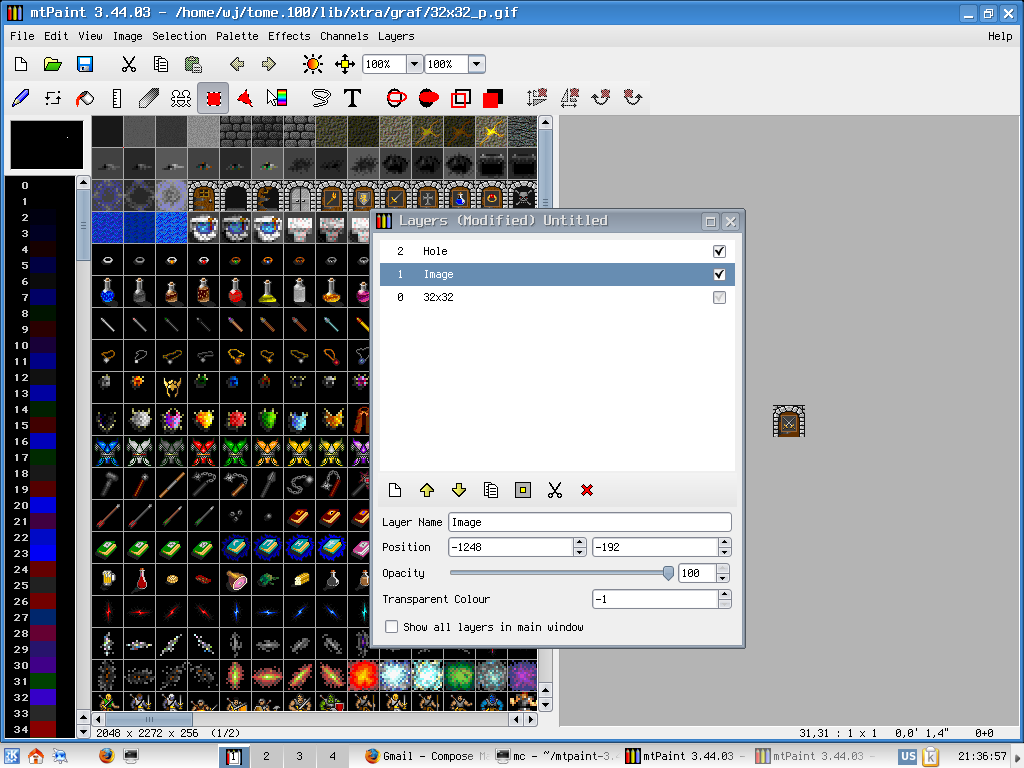
Could this mode work without a pre-configured animation setup though? Basically... since I am creating animated sprites for use in a game, but not prerendering *animations*, I want to be able to flip between tiles at will as I am drawing them. If I am using layers, it's not for animation but for compositing of the sprites themselves. So to be able to view one sprite tile at a time and flip around the sheet using arrow keys is really what I'm after. i.e. the tile-grid image itself is assumed to be the animation sequence. If this can be done with "View->Clip to background" it sounds good to me. Paul On Wed, Nov 2, 2016 at 2:24 PM, Dmitry Groshev < wj...@us...> wrote: > Hello! > > You wrote: > > I was just wondering if there'd be a chance of supporting this little > hack > > more officially? Like to be able to toggle an overlay tile mask on/off, > and > > then use a key combo + arrows to scroll the current image around > underneath > > it in order to test the animation effect. It's kind of pain to set up > this > > animation thingy with multiple layers every time. > > In recent versions, this task (like most things) can be scripted once > and re-run at will. > But given that I still hadn't found enough perseverance in me to > convert a batch of forum posts about it into proper docs... :-( > Anyhow, see below for a possibly better solution. > (BTW, key assignments are now configurable, too.) > > > Another option would be to just be able to toggle into a special VIEW > MODE > > that only shows one tile in the image at a time, and you can flip between > > image tiles in this view. > > Technically, said mode even already exists, internally; when mtPaint > is playing (or rendering) a preconfigured animation, the view is > clipped to the background layer. > If I add a toggle to enable it at will, it would remove the need of an > overlay mask at all. I think to make it "View->Clip to background" - > unless you could suggest a better name and/or place in menus for it? > > BTW, a tile-strip animation can easily be configured to auto-play as, > well, animation. :-) See here: > http://mtpaint.sourceforge.net/handbook/en_GB/chap_09.html#SEC33 > > > -- > -= With best regards, Dmitry Groshev =- > |
|
From: Dmitry G. <wj...@us...> - 2016-11-02 18:24:47
|
Hello! You wrote: > I was just wondering if there'd be a chance of supporting this little hack > more officially? Like to be able to toggle an overlay tile mask on/off, and > then use a key combo + arrows to scroll the current image around underneath > it in order to test the animation effect. It's kind of pain to set up this > animation thingy with multiple layers every time. In recent versions, this task (like most things) can be scripted once and re-run at will. But given that I still hadn't found enough perseverance in me to convert a batch of forum posts about it into proper docs... :-( Anyhow, see below for a possibly better solution. (BTW, key assignments are now configurable, too.) > Another option would be to just be able to toggle into a special VIEW MODE > that only shows one tile in the image at a time, and you can flip between > image tiles in this view. Technically, said mode even already exists, internally; when mtPaint is playing (or rendering) a preconfigured animation, the view is clipped to the background layer. If I add a toggle to enable it at will, it would remove the need of an overlay mask at all. I think to make it "View->Clip to background" - unless you could suggest a better name and/or place in menus for it? BTW, a tile-strip animation can easily be configured to auto-play as, well, animation. :-) See here: http://mtpaint.sourceforge.net/handbook/en_GB/chap_09.html#SEC33 -- -= With best regards, Dmitry Groshev =- |
|
From: Paul P. <ppr...@gm...> - 2016-10-30 19:11:32
|
Hello, sorry for the necro-reply... I was just wondering if there'd be a chance of supporting this little hack more officially? Like to be able to toggle an overlay tile mask on/off, and then use a key combo + arrows to scroll the current image around underneath it in order to test the animation effect. It's kind of pain to set up this animation thingy with multiple layers every time. Another option would be to just be able to toggle into a special VIEW MODE that only shows one tile in the image at a time, and you can flip between image tiles in this view. This kind of feature would be infinitely useful to me, heh. And to lots of other pixel artist/animators I'm sure. Paul On Mon, Apr 2, 2012 at 2:28 PM, Paul Pridham <ppr...@gm...> wrote: > Wow, that's a clever little hack... thanks for looking into this > Dmitry! Works pretty nicely, I can see my little doods moving. :) Is > there a way to quick toggle between layers with a keypress, so I don't > have to press L and click layers to switch and edit? Didn't see > anything in the docs... > > I imagine you could probably create a built-in "flip" mode in the > future just derived from this technique... or the underlying systems > upon which it works. D'ya think? ;) So, something like an option to > turn on "flip tile" mode, and it uses the tile grid size to take over > the nudge behaviour and turns on the relative movement that you've > demonstrated with the extra layer... but ideally without requiring the > additional layer(s). > > Anyway, very cool, thanks again. :) > > Paul Pridham > @madgarden > > > > On Mon, Apr 2, 2012 at 2:06 PM, Dmitry Groshev > <wj...@us...> wrote: > > Hello! > > > > On 31/03/2012, Paul Pridham <ppr...@gm...> wrote: > >> Perhaps CTRL + SHIFT + cursors could work for this. > > > > This combo, again, is taken. :-( > > "Ctrl+Shift+Arrows Move layer or resize selection box by x pixels" > > > >> And as for scrollbars/blank space... typically I'd zoom out to see the > >> "animation" anyway, at which scrollbars should be absent, so I don't > >> see this as a real problem. A simple snap-scroll on top of the current > >> behaviour is better than nothing! > > > > Scrollbars are absent when the whole image is visible - and naturally, > > it cannot be scrolled then. > > A kind of "pseudo-scrolling" is possible through manipulating the > > image origin then (place image off-center by changing the thickness of > > border on one side) - but myself, I would have found such > > "recentering" unhelpful. Because all the other frames would still > > remain visible around the central one, and my eyes would wander from > > the "true center" position anyway, tracking the frame as it moves > > away. > > > > But all is *not* lost ;-) because as it happens, it is possible to do > > the kind of "animation" which you desire in *any* mtPaint version > > beyond 3.30 - using the same Ctrl+Shift+arrow combo, along with just a > > little ingenuity. :-) > > > > Look at the demonstration screenshot: > > http://mtpaint.sourceforge.net/hole_anim.png > > Background layer "32x32" is sized as a single tile, to auto-center the > > view window on tile at global (0,0) > > Layer 1 "Image" contains the tileset. > > Layer 2 "Hole" is the hole mask, and it is the only place where > > ingenuity is called for. It is a large image, filled with background > > grey, and offset so that to cover the entire view window when at 100% > > zoom. Then a tile-sized hole is made in it at global (0,0) coordinates > > (i.e., above the background) by filling the tile-sized rectangle with > > transparent color. > > Now, set "Selection nudge pixels" pref in "Interface" section to tile > > size (for this technique to work, tiles need be square). > > > > After all that preparation is done, you'll be able to "animate" the > > tile in view window anytime, by pressing Ctrl+Shift+arrow key. That > > will move the current layer (tileset) by one tile-sized step relative > > to other layers, which will make another, adjacent tile to show > > through the hole. > > > > > > -- > > -= With best regards, Dmitry Groshev =- > |
|
From: Dmitry G. <wj...@us...> - 2016-04-21 18:34:39
|
Hello! On 4/19/16, S Williams <sy...@gm...> wrote: > Every time I open a new image the default zoom for viewing is 100%. > I would like images to open with a default zoom of say 25% OR ideally > set the default zoom such that the images "fits to window". Do you mean that you use mtPaint as a viewer, not an editor? While mtPaint has so-called "viewer mode", and even defaults to it when run as 'mtv' - I myself virtually never used it as such. And as for "fit to window", mtPaint is somewhat limited in that by its very design; it can zoom out only by integer fractions (1/2, 1/3, ... 1/10) and that is unlikely to change, as its renderer is entirely built around that. > Is there a way to set default viewing zoom in mtPaint. Not at the moment. I could possibly add it, but it depends on specifics of your intended use case. See, any automatic tweaking of zoom factor does not fit with image load operation's being handled as a regular, undoable, image modification. Which is presently the default in mtPaint. The first image in a session, loaded through commandline, could in principle be made to be fit to window - but for the ones loaded after that, zoom won't be changing by itself, at least unless "Undoable image loading" is disabled. Are you OK with such a behaviour, or have you wanted something else? -- -= With best regards, Dmitry Groshev =- |
|
From: S W. <sy...@gm...> - 2016-04-19 08:46:22
|
Hi, Every time I open a new image the default zoom for viewing is 100%. I would like images to open with a default zoom of say 25% OR ideally set the default zoom such that the images "fits to window". Is there a way to set default viewing zoom in mtPaint. Thanks in advance Stan -- " Any society that would give up a little liberty to gain a little security will deserve neither and lose both." - Benjamin Franklin. |
|
From: Iam H. <pr...@az...> - 2016-03-11 00:52:15
|
They kill with wars, alcohol and abortions. Save us!!! |
|
From: Dmitry G. <wj...@us...> - 2016-01-14 12:43:40
|
Hello!

You wrote:
> last time I tried it, I was fairly impressed, and I thought it may be
> possible that mtpaint could use FLTK2 as well, which would eliminate
> my need for GTK, and they would make a nice pair: Dillo+Mtpaint, but
> minimal but fully capable graphics programs.

After the redesign done in the 3.44 branch, mtPaint can in principle
use any GUI toolkit without a huge effort. To add support for another
toolkit, it is now enough that someone would reimplement
toolkit-dependent functionality of vcode.c using a toolkit of his
choice.
Unfortunately, I am not presently in a position to be that someone.
Even for a mainstream toolkit like GTK+3 or Qt. For doing a port would
still need nontrivial time, to match function to function and add
workarounds for bugs and deficiencies - and presently I am not able to
invest that time, nor to predict when that will become possible for me
again. Real life and its problems have to get precedence, lest they
become worse. :-(

> PS. I am one of those 'idiots' that wishes mtpaint had a much better user
> interface.  Minimal things are good for people that need to use a capable
> program, but they may not use it so often that they can remain expert in
> all of the little secrets that make mtpaint functional.

Presently, after the redesign, the totality of mtPaint's UI is
implemented in transparent enough declarative pseudocode ("V-code").
You, and everyone else, are welcome to customize it in any way you
like.
In point of fact, the program can now provide any number of UIs to
choose from - if someone would make V-code descriptions for
alternative arrangements.


--
-= With best regards, Dmitry Groshev, maintainer of mtPaint =-
|
|
From: CK <ni...@gm...> - 2016-01-14 05:06:02
|
Fortunately, or unfortunately, as the case may be, mtpaint is the only capable graphics program that isn't an over-bloated pig. I am hoping the web-browser Dillo becomes fully functional soon, which runs on FLTK2, and last time I tried it, I was fairly impressed, and I thought it may be possible that mtpaint could use FLTK2 as well, which would eliminate my need for GTK, and they would make a nice pair: Dillo+Mtpaint, but minimal but fully capable graphics programs. PS. I am one of those 'idiots' that wishes mtpaint had a much better user interface. Minimal things are good for people that need to use a capable program, but they may not use it so often that they can remain expert in all of the little secrets that make mtpaint functional. |
|
From: Jim F. <jim...@fi...> - 2015-06-03 18:27:36
|
Thank you! -----Original Message----- From: wja...@gm... [mailto:wja...@gm...] On Behalf Of Dmitry Groshev Sent: Wednesday, June 03, 2015 1:06 PM To: Jim Fulmer Cc: mtp...@li... Subject: Re: [Mtpaint-user] Saving as LSS Hello! You wrote: > I am trying to convert a png file to a .lss but it isn't an option in > the file format drop down. What am I missing? This: http://mtpaint.sourceforge.net/handbook/en_GB/chap_A.html#SEC2 "Format: LSS ... Image type: Indexed with 16 colours or less" Do "Image->Convert to indexed" to transform your PNG into an LSS-compatible form. This section of the handbook discusses the finer points of the process: http://mtpaint.sourceforge.net/handbook/en_GB/chap_06.html#SEC8 -- -= With best regards, Dmitry Groshev, maintainer of mtPaint =- |
20 messages has been excluded from this view by a project administrator.

