kindling Wiki
Novel writing app that bridges outlining and drafting. Built with Rust
Status: Beta
Brought to you by:
smithandweb


Kindling exports your work to multiple formats so you can move between outlining, drafting, and publishing workflows.
Open Export from the project toolbar or menu, then choose a format and scope.
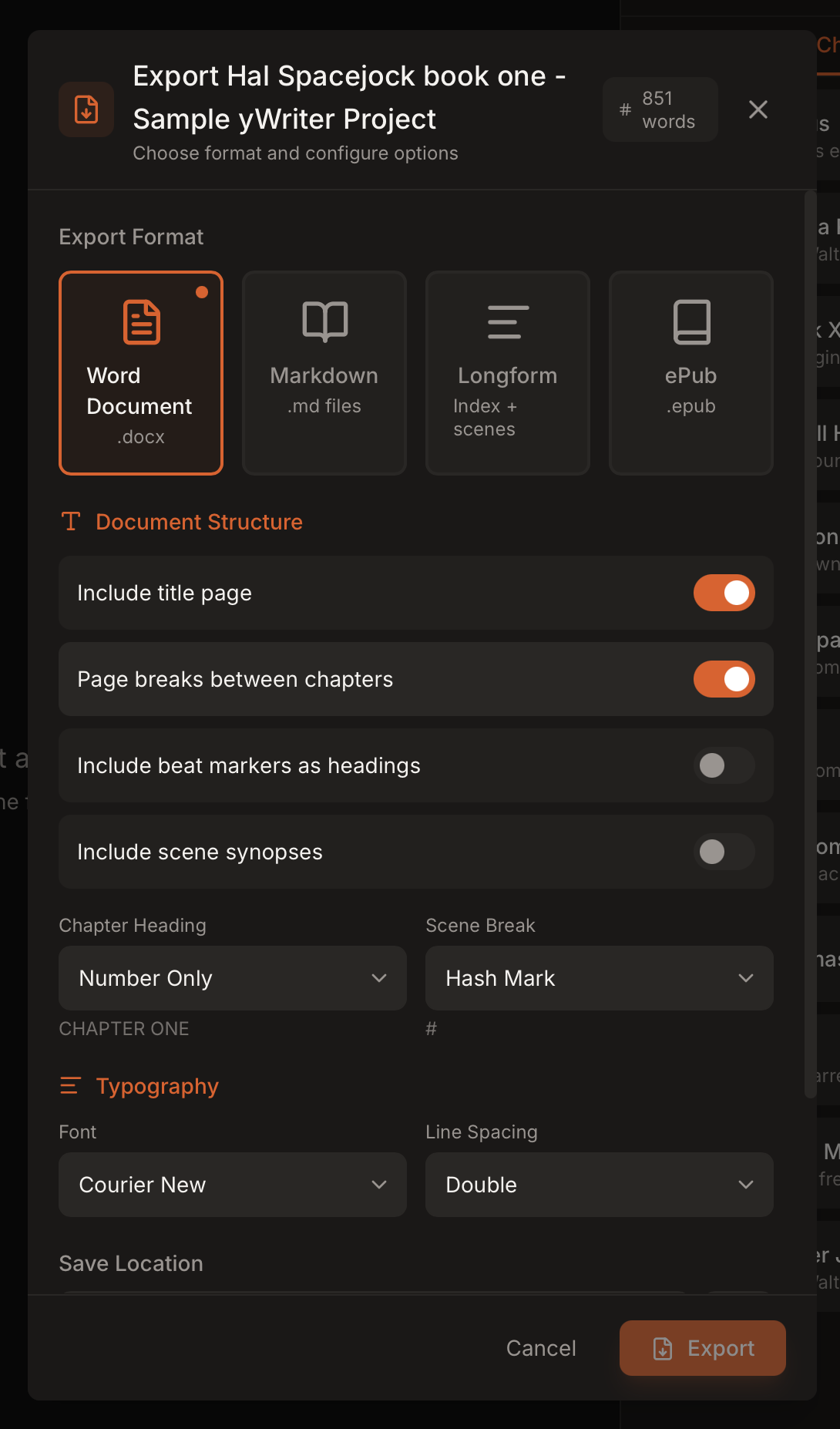
| Format | Output | Best For |
|---|---|---|
| DOCX | .docx file |
Standard Manuscript Format submissions |
| Markdown | Folder of .md files |
Plain text workflows or backups |
| Longform/Obsidian | Index + scene files | Roundtrip with Obsidian |
| EPUB | .epub file |
E-readers and ebook previews |
| Scope | What It Includes |
|---|---|
| Project | All chapters and scenes |
| Chapter | Only the selected chapter |
| Scene | Only the selected scene |
DOCX exports are designed for manuscript submissions and include formatting options for:
Markdown exports create a folder structure like:
My Project/
  01 - Chapter One/
    01 - Scene One.md
    02 - Scene Two.md
Longform exports are optimized for Obsidian + Longform workflows.
Output layout:
My Project/
  My Project.md          # Longform index
  Scene One.md
  Scene Two.md
  characters/
  locations/
  items/
  objectives/
  organizations/
Scene files include:
type, project, status, characters, setting, synopsis)<!-- kindling: ... --> metadata and beats markerReference notes are written into folders for characters, locations, items, objectives, and organizations.
EPUB exports include:
For importing or syncing exported content, see Importing Projects and Sync & Reimport.


