
Menu
▾
▴

Home
Datinator
Datinator is a tool for people who frequently have to copy lists into or out of a database. Most databases support exporting and importing from and to CSV files, but unless the data is already in the proper format, you have to write custom scripts. Which can become rather tedious, so I decided to write a tool which allows me to do this in a GUI. An additional benefit is, that you can add new columns or modify them on before inserting.
If you have to copy data from one database into another it may even be impossible unless you export to an intermediate format or if the databases have no connection to each other. Of course, you can not just copy data between different databases, you also can copy data within the same database or within the same table.
Plugins
Datinator uses a connector to connect to a datasource or -target. Each connector has it's own configuration screen depending on what information is needed to access the data. The source can also display a sample of the data. This preview is not complete and is only for informational purposes. It helps the user to see what kind of data he is currently working on, when configuring the mapping between columns.
Each connector is implemented as a shared library, which has to reside in the program directory or any directory below it. When Datinator is started it looks for all shared libraries and checks if it has a valid plugin. If yes, it will be added to the combobox to choose from. So in order to remove a plugin, simply delete the respective shared library, or to install a new one, just drop it there. A single library can contain more than one connector. Currently each library contains at least a reader and a writer, but of course it is possible to only have one of them, or even multiple different readers and writers.
Connectors
A connector is simply a module which knows how to access a specific set of data and provides configuration options specific to it's particular database. For a example to access a CSV file, we only need a filename. In order to access an Oracle database, you need to specify the host, user and password and maybe additional options. In most cases there will be a reader (left side) and a writer (right side).
Column mapping
In the middle section of Datinator, are the columns of the source and the target. When loading a source then by default the target will get all columns by default if the writer supports this. If the writer can not create columns, it has to provide them (i.E. from an existing table) from it's database.
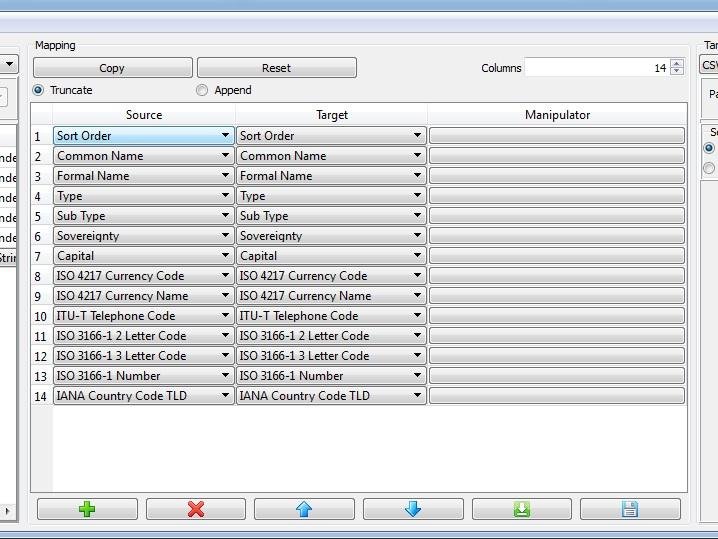
You can now choose which columns you want to take over into the target or if you want to rearrange them. If a column should be ommited, then you can simple select the empty value in the target column. Of course you can also reorder the columns, or map the same column to multiple targets. You can select a row by clickingon the number next to it. Selecting multiple rows can be done depending on your window manager. In MS Windows you can do this either by using SHIFT-LeftMouse for a range or CTRL-LeftMouse for selecting individual items. When you click on the delete button 'X' the selected rows will be removed, or you can rearrange them by using the up and down arrows.
If you need to add new columns which don't exist in the current selection, click on the '+'. The editor will open to allow you removing or adding new columns or change the type.
To add a new column, simply click in the empty name field of the last row and a new row will be added. If you want to remove a row, just delete the name in the field and press enter. You don't need to remove all anneeded columns though, because you can simple select the empty value as the target and they will not be used. When performing the copying, only columns which have a target name selected will be used.
If you have a writer selected which can not create new columns, then the column editor will not be available and you can only choose from the columns that the writer provides.
Currently the Oracle plugin doesn't support creating new columns, because I'm using it in a production environment and I want to make sure that people don't accidently disrupt existing tables. In later revisions this might be changed or made optional.
Manipulators
A very powerfull feature if Datinator is, that you can add manipulators which will then modify the values you are inserting. The default operation is to copy the data as it is read, but in many cases you might want to add additional content or modify it. Next to each column names is a button and clicking it will open the manipulator editor for the respective column.
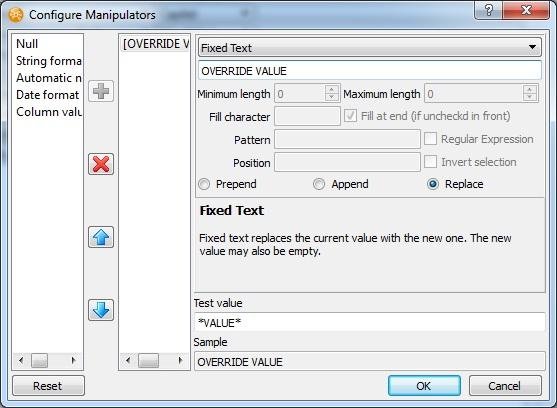
Here you choose the type of manipulator and click the '+' button. Then click on the newly created item in the middle listbox and the configuration options will become visible.
At the bottom of them, you can see two textboxes 'Test value' and 'Sample'.
In Test value you can enter some arbitrary text, which should resemble the kind of data you expect as input. In Sample you can see how the current configuration affects the provided input, so you can immediatly verify that the resulting output of the manipulator will be what you expect it.
The buttons Prepend, Append and Replace decide if the output of this manipulator will be put at the respective place of the input value. In front, at the end or replace it. You can use multiple manipulators, so these buttons have to be appropriately selected.
To illustrate this I will give a short sample.
So assume we got a list like the CSV on this screenshot:
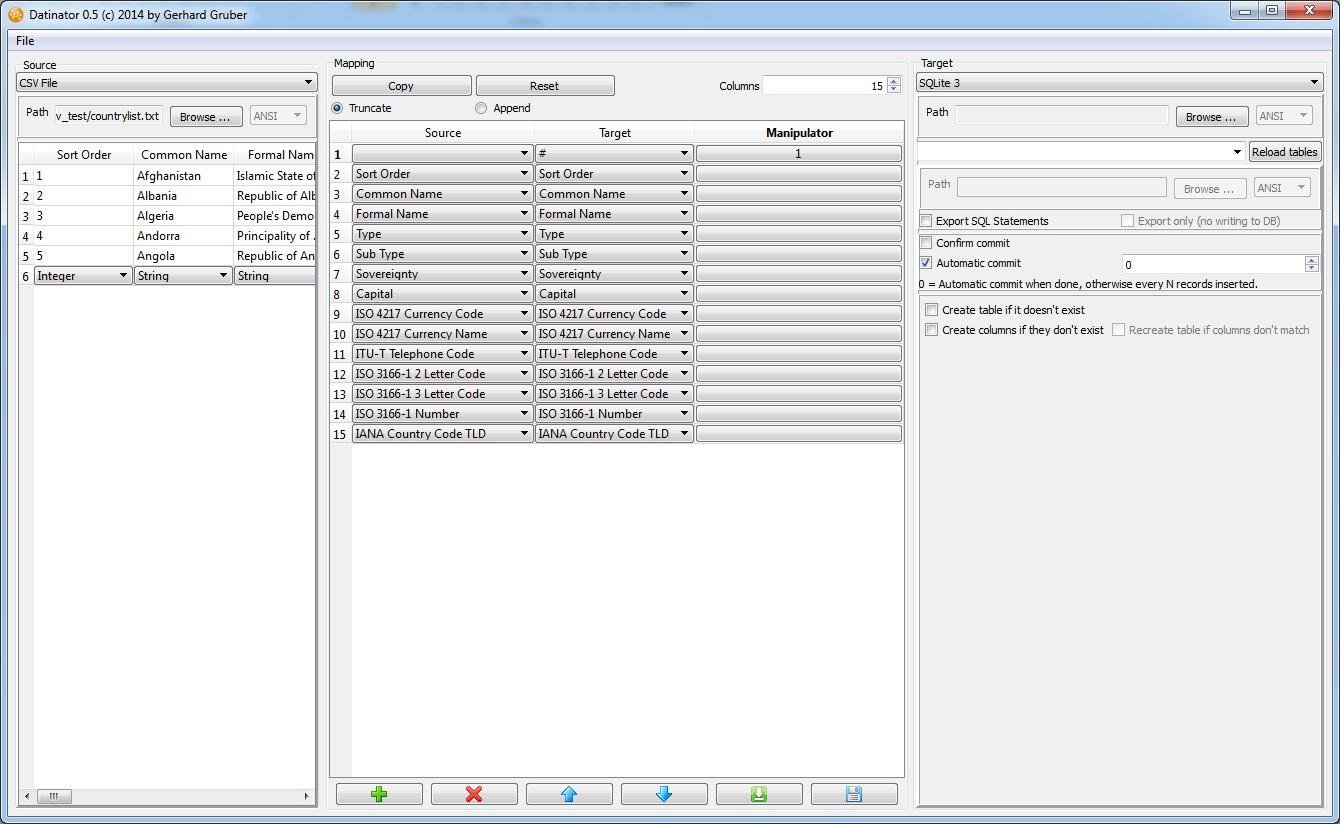
In our output we want to have a new column Name in the format "Common Name (Formal Name)" so we need to combine these two columns.
- Click on the '+' button to open the column editor.
- Add a new column item named Name.
- Add the new column item by increasing the Columns value at the top of the window. A new column appears and we can select the newly created columnname as the target.
- Click on the manipulator button.
- Add a String formatter and click on it.
- In the text field below the combobox enter " (" (without the quotes)
- Click on Append
- Add a Column value and use again Append
- Choose Formal Name
- Add another String formatter and enter ")" (again without the quotes)
Now when you are done and clicked OK you can see a sample value in the Manipulator field next to Common Name.
Now when you copy this list to another file (or database) you will have a new column with the desired output.
Project Members:
- Gerhard W. Gruber (admin)

