
Menu
▾
▴

en-Install-Getting Started
Getting Started
Configuring BDJ4
Start BDJ4. The window that displays is the Starter window. Select the Configure button. The configuration window can be quite slow to start on Windows, be patient.
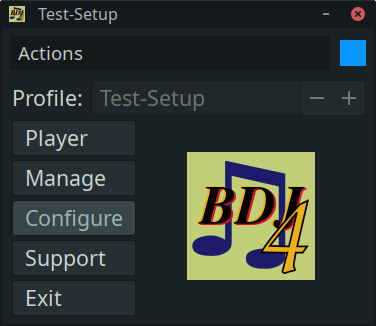
Starter
Locale
The Nederlands (Dutch) translation is in excellent shape. The Русский (Russian) translation is ok.
The other translations are machine generated and are of very low quality. If the translation for your locale is not good, you may want to select English (GB) or English (US) in the Configure / General / Locale selection.
After selecting a locale, exit and restart BDJ4 to display the selected language.
If you can help improve a translation, contact support using on of the methods listed in Getting Help.
Set the location of the music folder
The first step is to configure the location of your music folder.
In the configuration window, the General section will be displayed. In the General section, the first item is the Music Folder.

Configure / General / Music Folder
Use the directory chooser button with the folder icon on the far right to choose the location of your music folder.
Leave the configuration window open.
Choose how your music is organized
It is very important to choose the correct organization setting before building the BDJ4 database.
The organization is important so that BDJ4 can determine information about your songs when the database is built. Most importantly, the dance associated with each song, which is not usually stored in the audio file tags.
In the configuration window, select the Organization section from the list on the left side of the window.
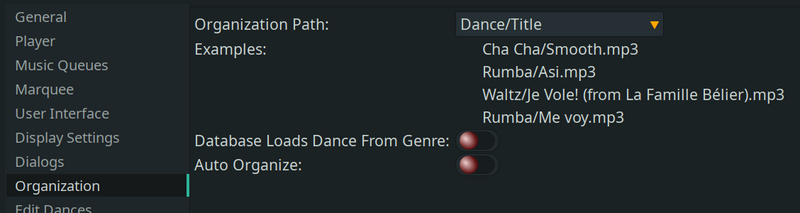
Configure / Organization
In the Organization section, the default organization is Dance/Title. This is a common organization method that many people use where each dance is in a separate folder. Another common organization path is Dance/Artist - Title.
If you have iTunes installed, the organization path will be set to Album Artist/Album/Disc - Track0 Title.
Select the organization method you use for your songs in the Organization Path drop-down.
If your audio files have the dance stored in the genre audio tag, turn on the Database Loads Dance from Genre switch.
If the organization path you need is not present, contact support using one of the methods in Getting Help. Many different organization paths are supported, but not all are listed in the drop-down.
Leave the configuration window open.
Check the configured dances
It is best to make sure all the dances that you use are set up correctly before adding songs to the database.
In the configuration window, select Edit Dances from the list in the left side of the window.
Check that all the dances that you use are listed. Add any dances you use that are missing from the list. Also check to make sure the spelling of each dance matches what you use. For example, Waltz may need to be changed to Slow Waltz or English Waltz. Any dances that you do not use may be removed.
References:
Configuration / Edit Dances
Close the configuration window.
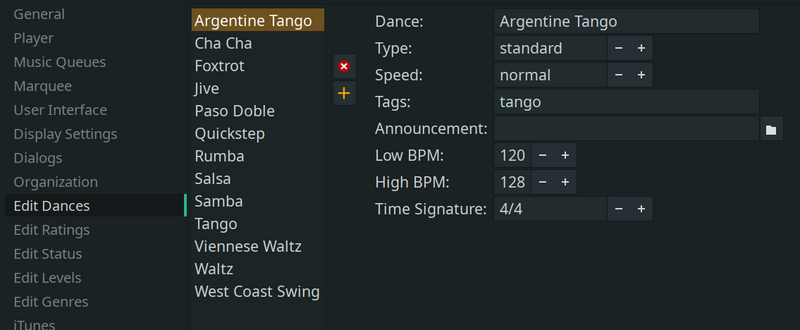
Configure / Edit Dances
Creating the database for the first time
The BDJ4 database contains the information about your songs. The information in the database must be populated the first time.
In the Starter window, select the Manage button. This will open the management user interface. Select the Update Database section in the left side of the management window.
Use the plus and minus buttons to change Action to Rebuild Database. Select the Start button. Depending on how many songs you have, the database rebuild may take a long time. Wait for the database rebuild to finish. A Complete message will be displayed when it is done.
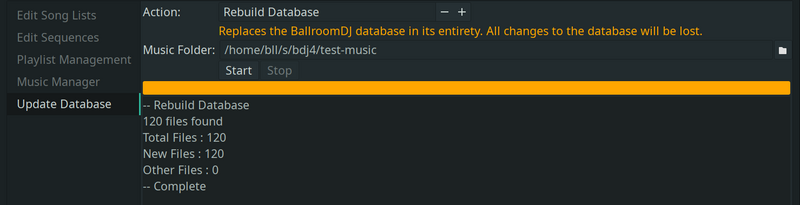
Manage / Update Database
As there is an entirely new database, the database must be re-loaded. Close the management window, then select Manage again in the starter window.
Check the dance for each song
Select Music Manager in the left side of the management window. Scroll through the list of songs and check to make sure the dance is set for each song. It is OK if some songs are left without an assigned dance, but most should have a dance set.
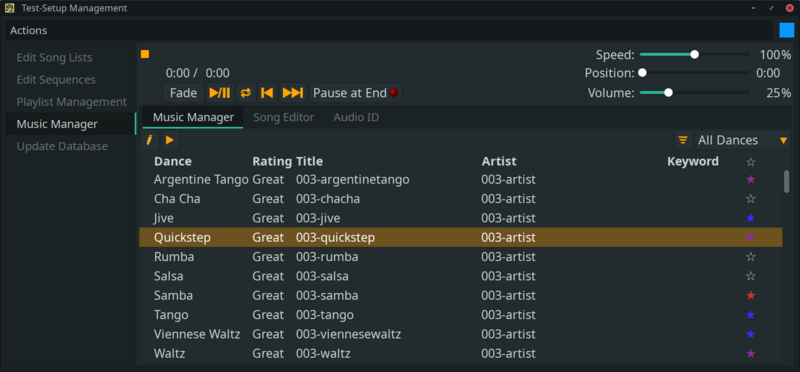
Manage / Music Manager
If the dance is not set, select the song in the listing, then select the Song Editor tab. Use the dance drop-down selection and select the dance for the song. Select the Save button in the upper right of the Song Editor tab. Switch back to the Music Manager tab and check for other songs that need to have the dance set.
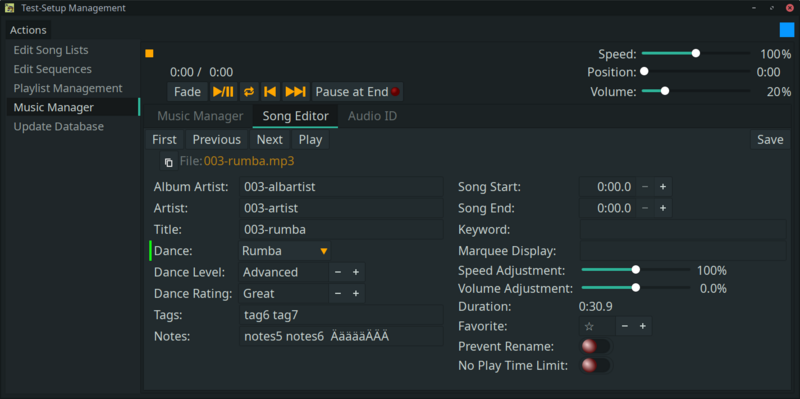
Manage / Song Editor
Leave the management window open.
Create an example playlist
Select Edit Song Lists in the left side of the management window. On the right side of the window below the player is a list of your songs. Select a song in the right side of the window. Select the left arrow button ( ) in the middle of the lower section. This will add the song you selected to the song list that is being created.
Above the song list is an entry box with the name New Song List in it. Click in the box and change the name of the song list.
Select some more songs and add each of them to the song list.
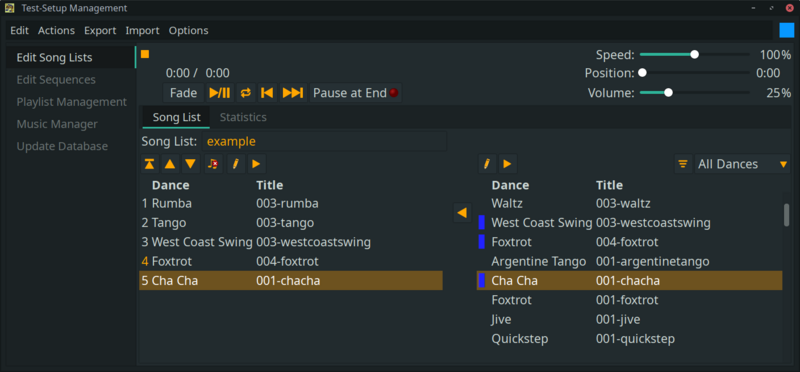
Manage / Song List Editor
Close the management window. The song list is automatically saved.
Play the example playlist
Now select Player in the starter window. In the player window, select the Queue Playlist drop-down, and select the example song list that you just created.
The song list will load into the player. Select the Play / Pause button ( ) to start the music playing.
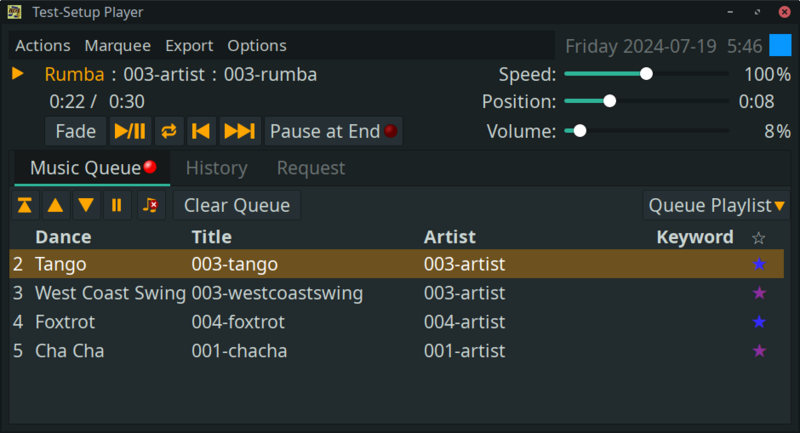
Player
More information
There is more information available here on the wiki on many different subjects.
Overview of BDJ4 covers some terminology and information that are useful to know when starting with BDJ4.
Getting Help
If you need help getting started, understanding how something in BDJ4 functions, or want to learn how to accomplish a particular goal in BDJ4, use one of the methods in Getting Help.
(Updated 2026-04-13 13:21:58; BDJ4 version 4.18.2)
Related
Wiki: Home
Wiki: en-Configuration-Edit Dances
Wiki: en-Getting Help
Wiki: en-Install-Linux
Wiki: en-Install-MacOS
Wiki: en-Install-Overview
Wiki: en-Install-Windows

